
How to use microsoft 365 for free
👉 “Microsoft 365 gives you access to powerful tools like Word, Excel, PowerPoint, Outlook, and OneDrive—all in one place. The best part? You can use them for free with just a few simple steps. Let’s see how!”
A Step-By-Step Guide:
🎥 Demo Video Available
👇You can either watch the demo video for a quick walkthrough, or follow the detailed step-by-step instructions below.
Microsoft 365 (formerly Office 365) provides powerful tools like Word, Excel, PowerPoint, Outlook, and OneDrive. The best part? You can use the web versions for free with just a Microsoft account.
This guide will walk you through the step-by-step process of setting up and using MS365 online, with spaces to add screenshots for clarity.
What you get for Free?
- Free access to web versions of Word, Excel, PowerPoint, OneNote, Outlook, Teams, and OneDrive
- 5 GB of OneDrive cloud storage
- Ability to create, edit, and share documents online
- Real-time collaboration with others
Note:
⚠️ Advanced desktop features require a paid subscription.
# Step 1 — Create a Microsoft Account
➤ Open any browser like Chrome or Edge.

➤ Open a new tab and type signup.live.com or
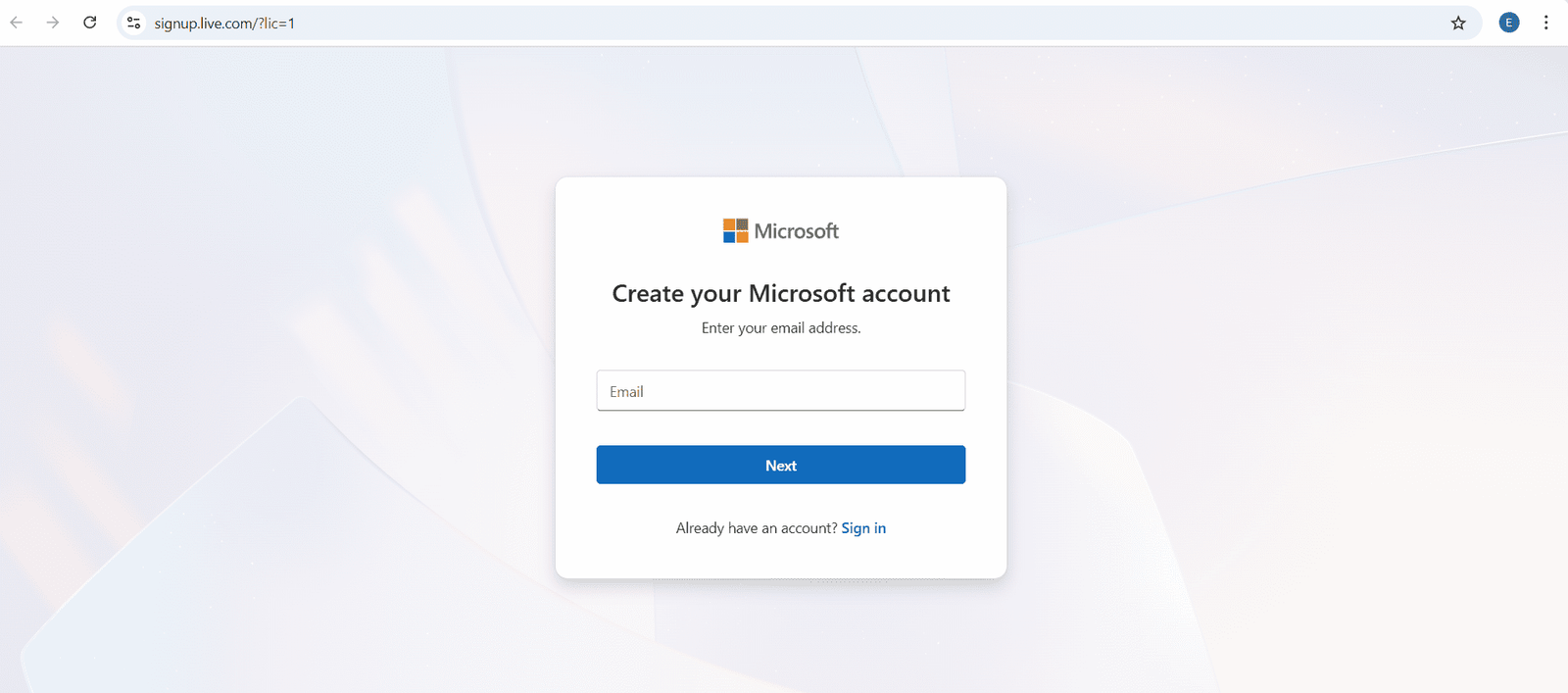
➤ Click on the Email input field and enter any email (e.g., easymylearning@outlook.com).
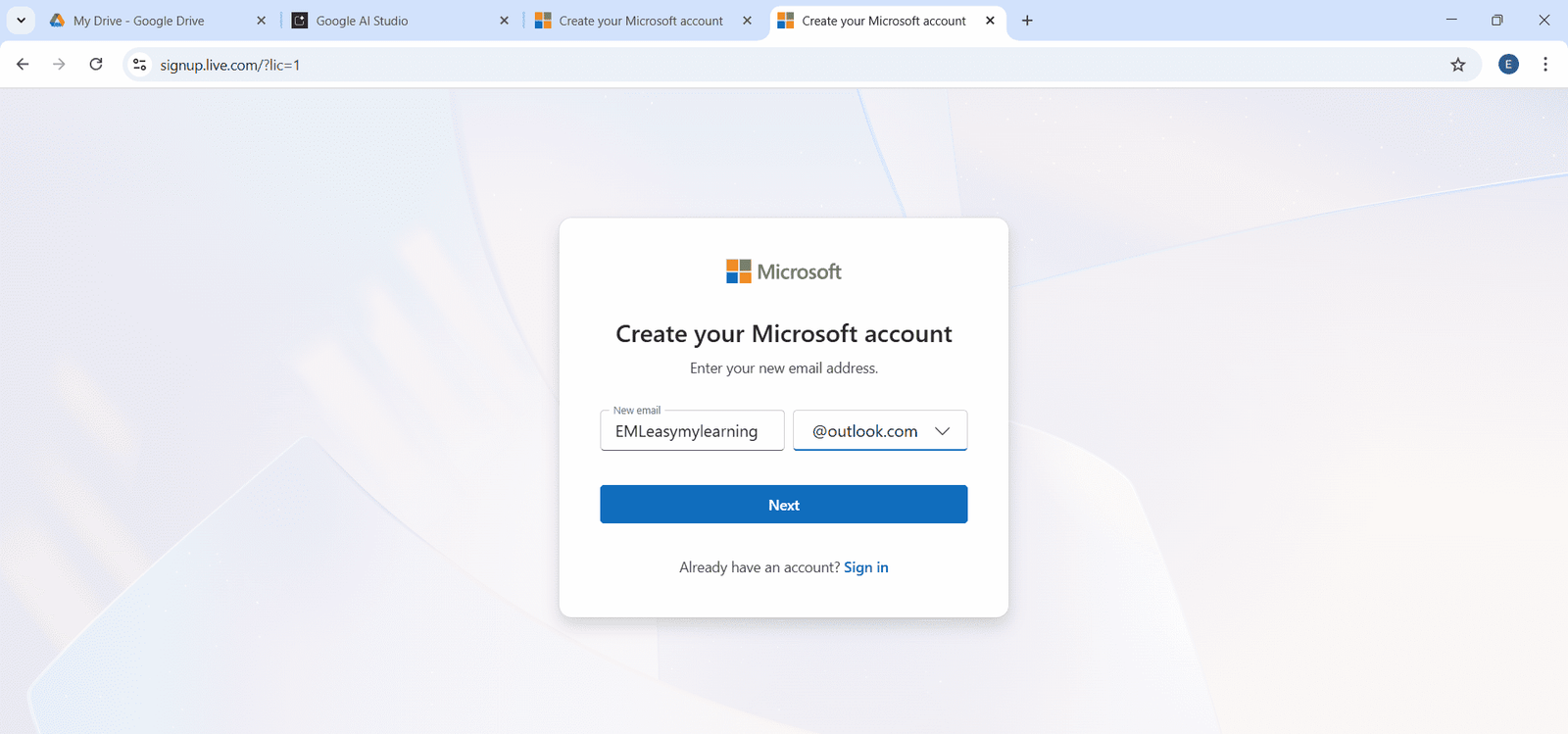
➤ Click on the Next button.
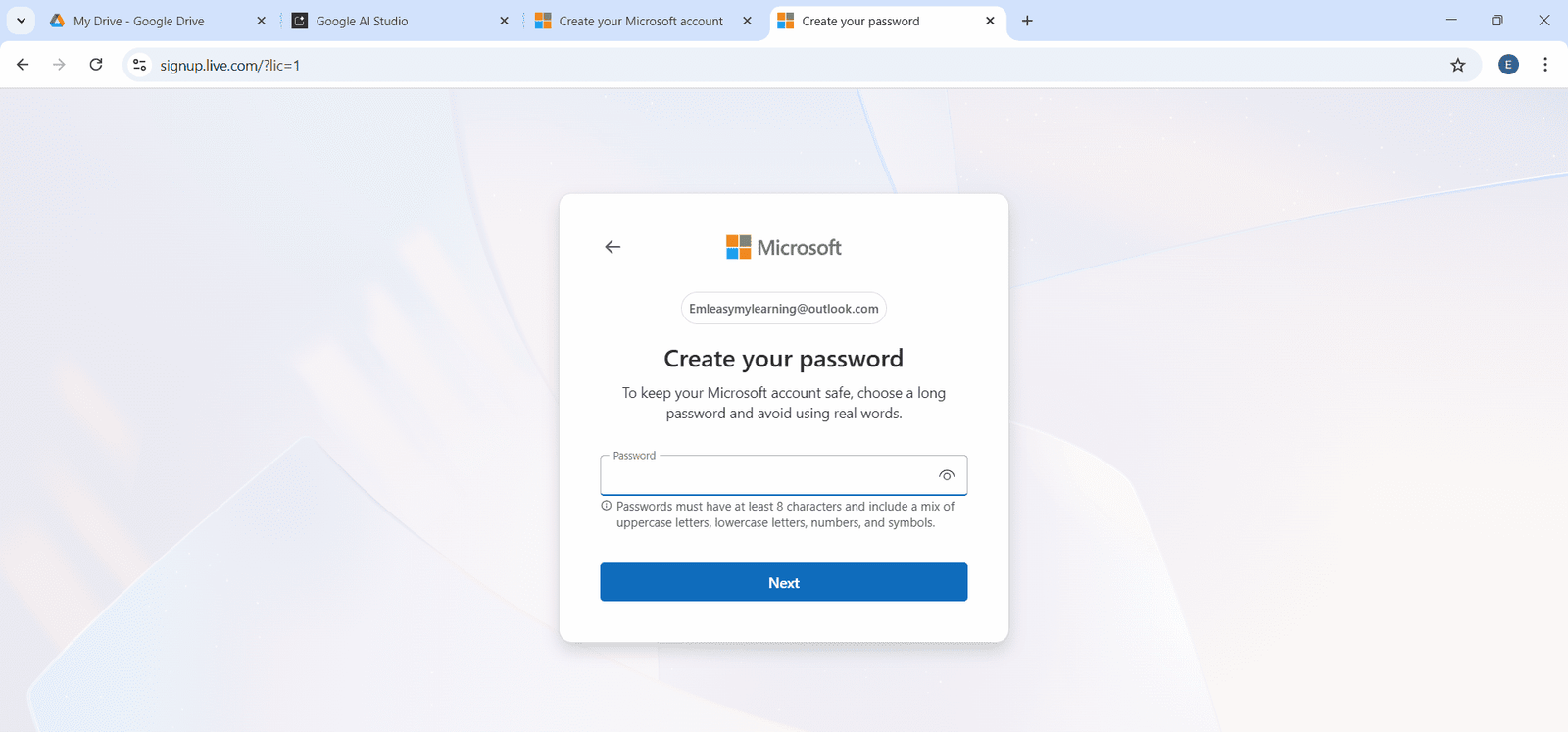
➤ Enter a new password in the Password field.
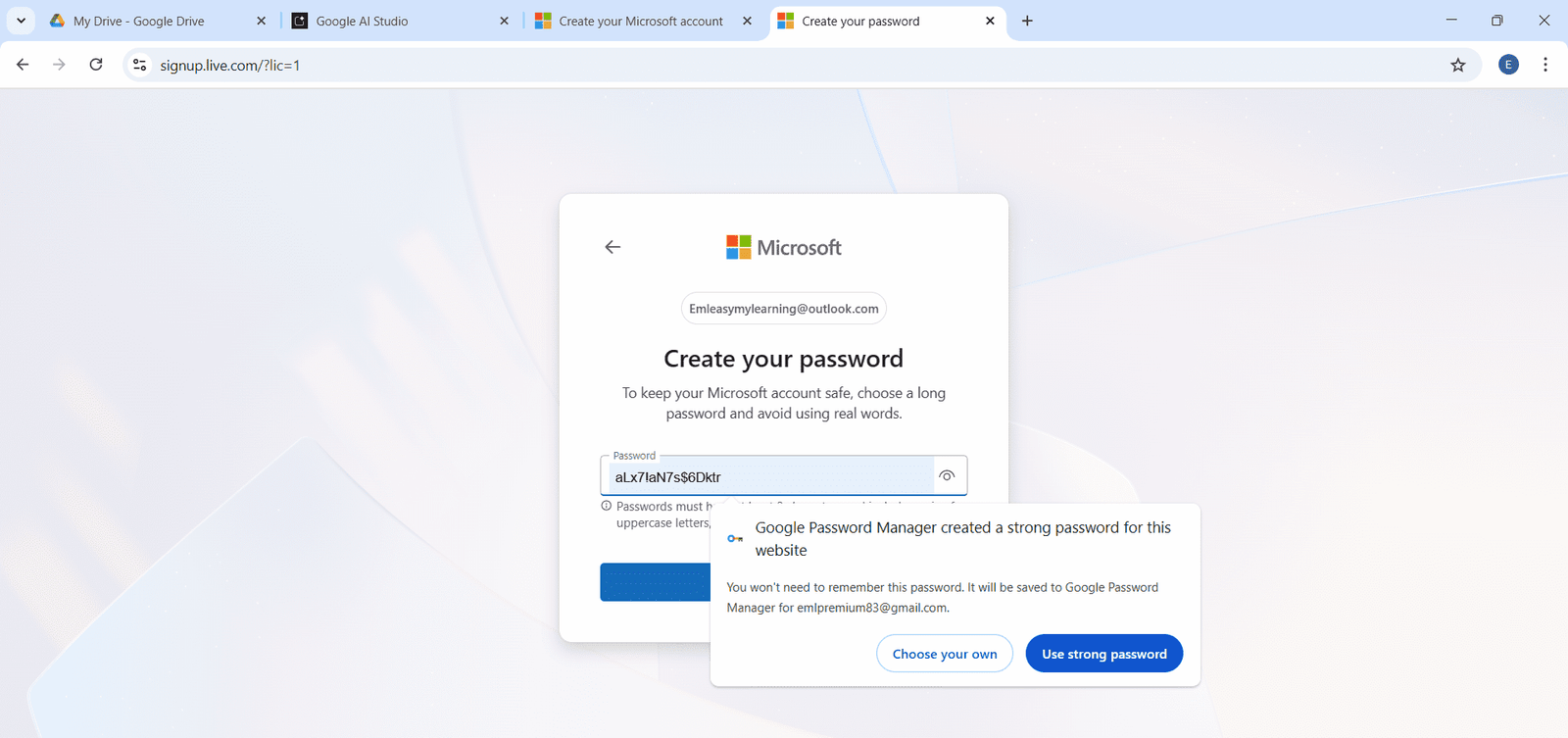
➤ Click on Choose your own password.
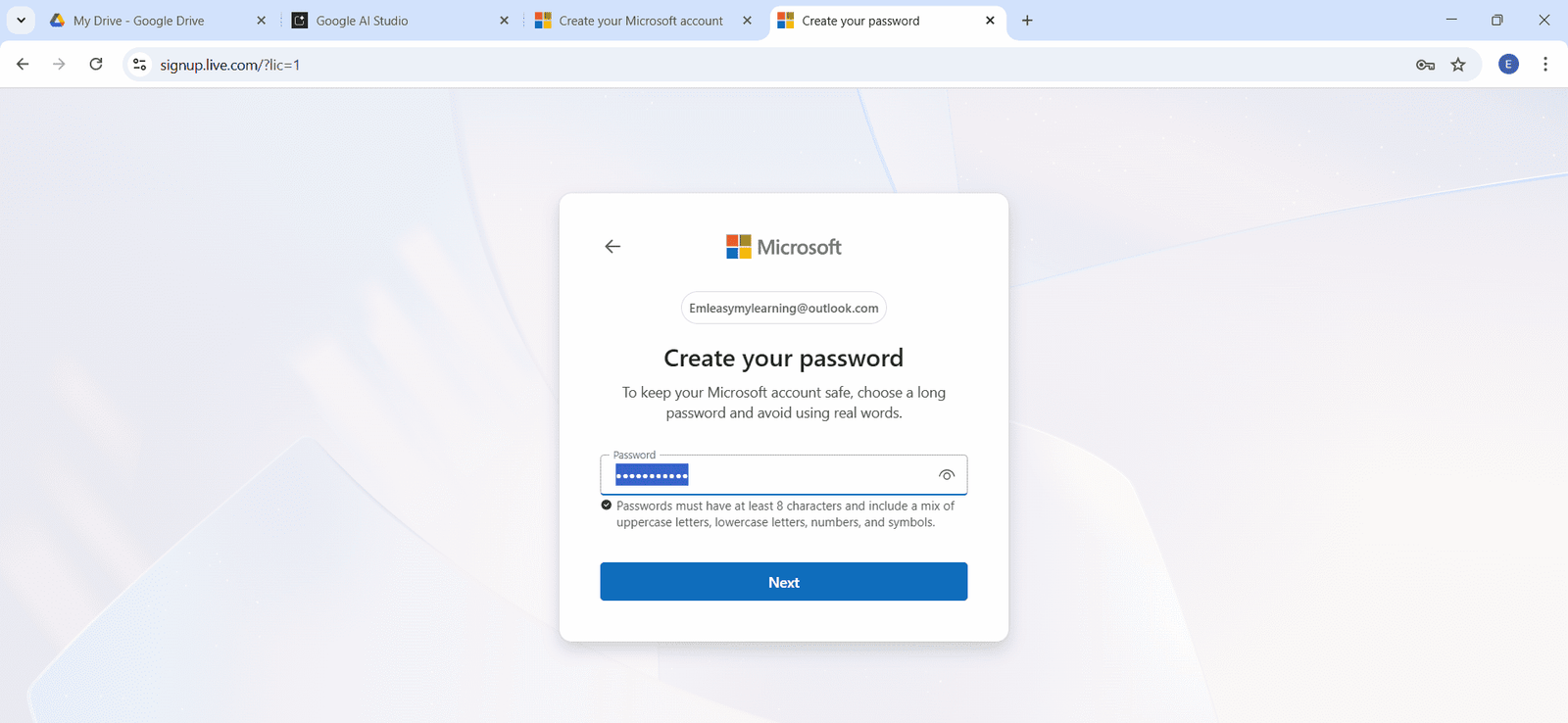
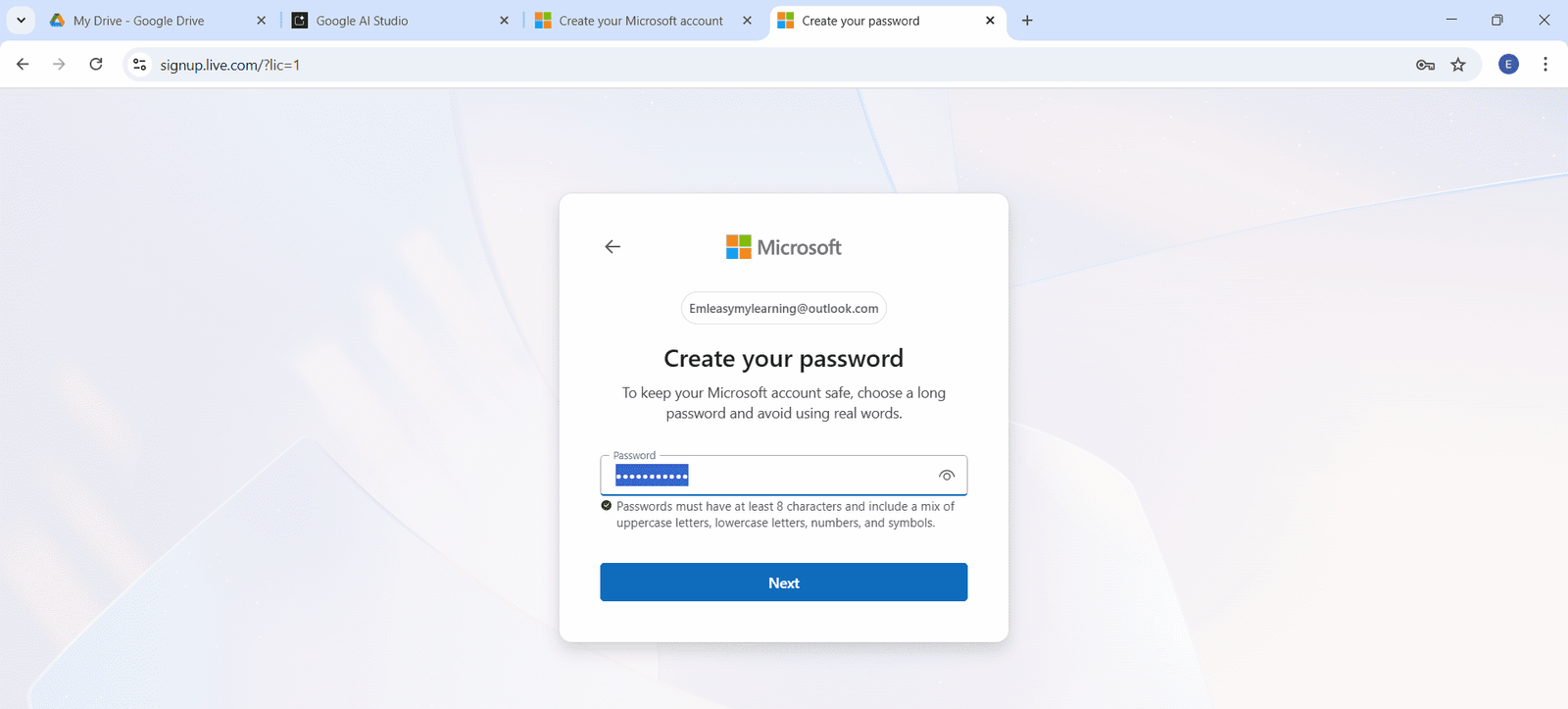
➤ Click on the Next button.
➤ Select your country and enter your Date of Birth (Month, Day, Year).
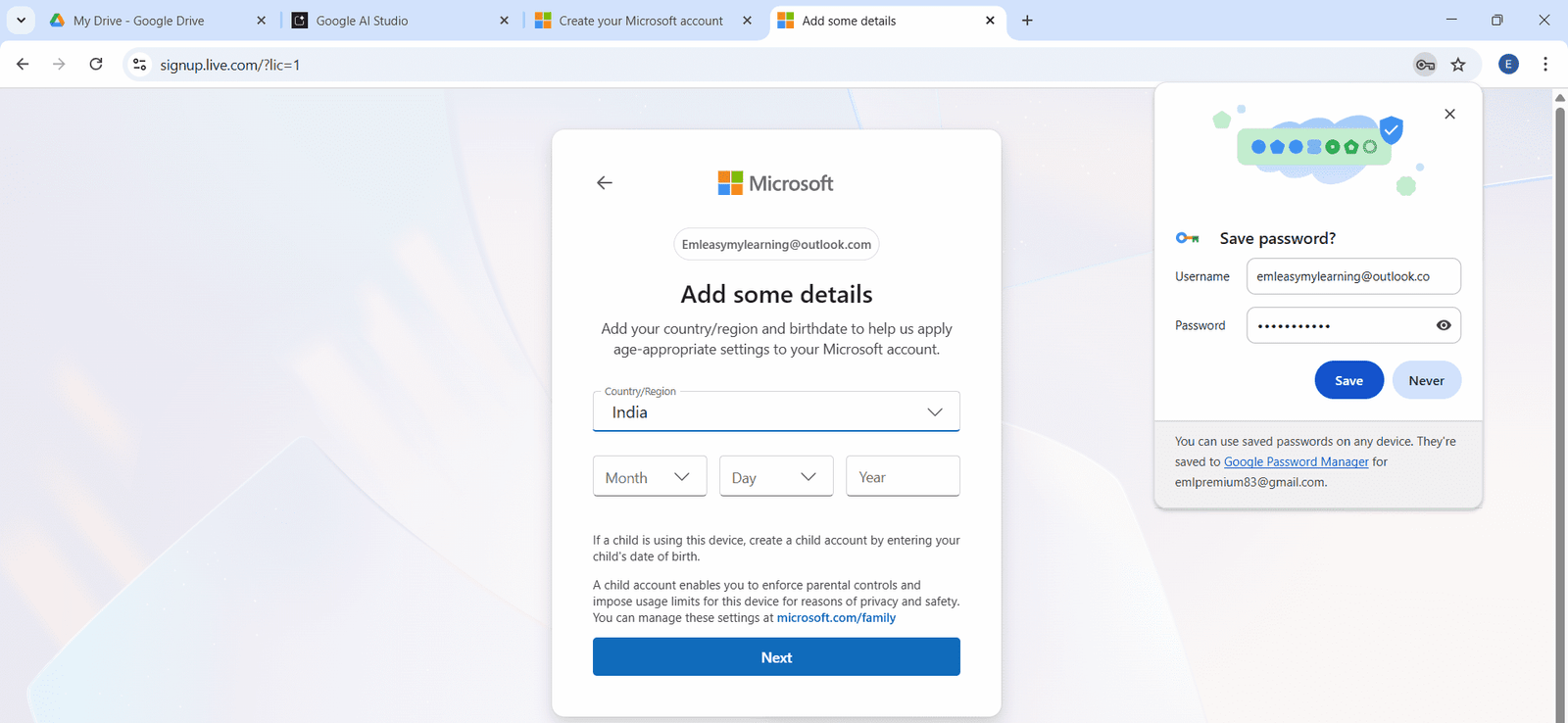
➤ Click on the Next button.
➤ Enter your First Name and Last Name.
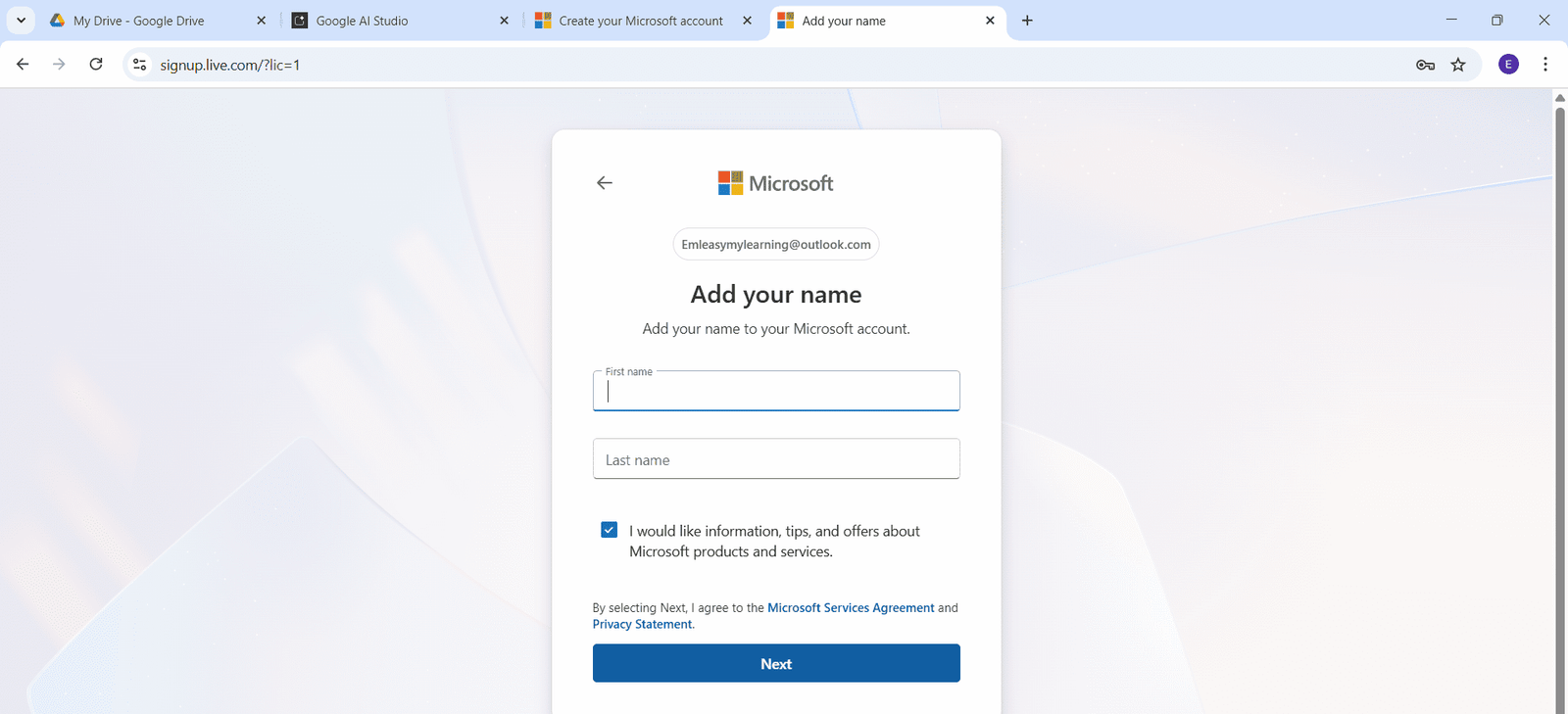
➤ Click on the Next button.
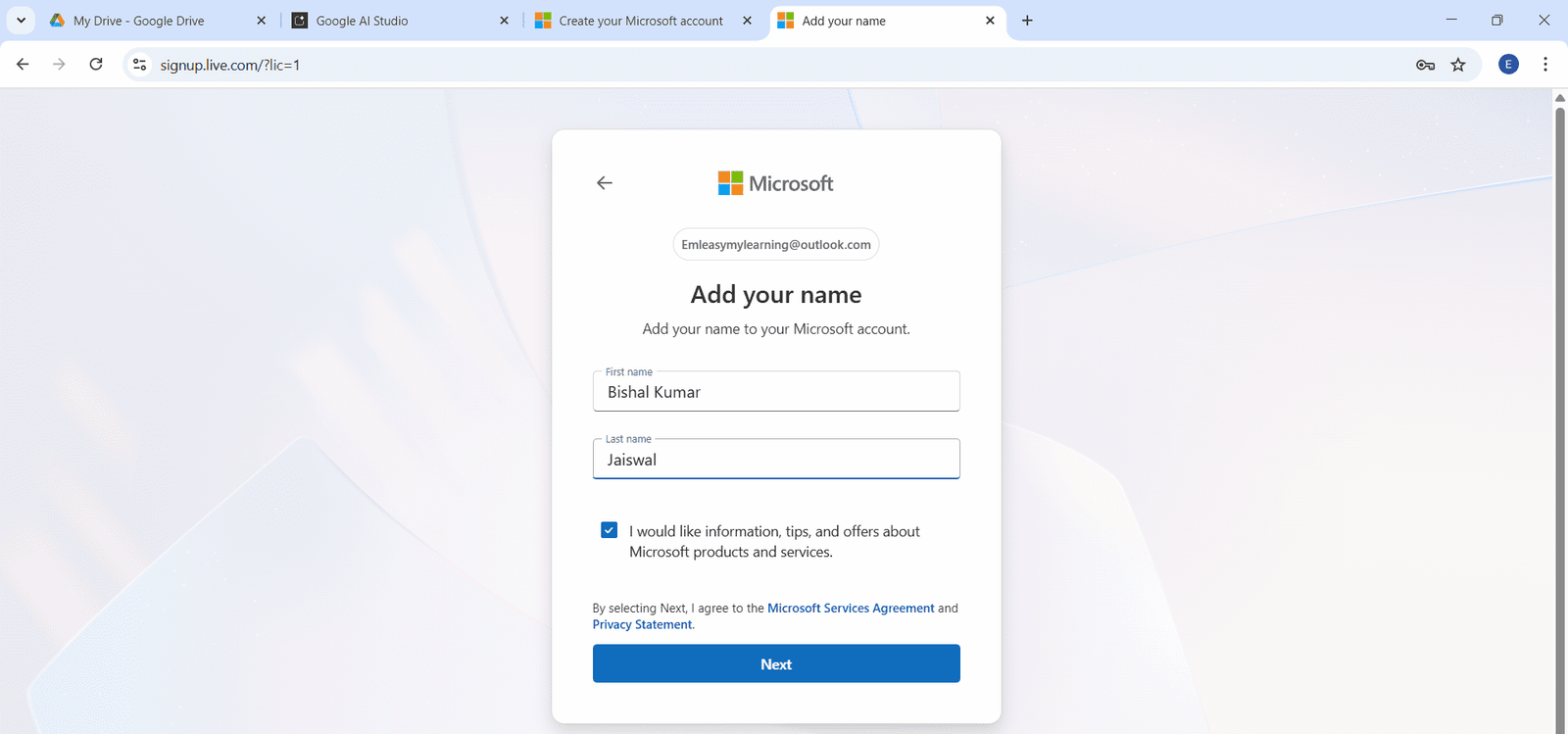
➤ Verify you are human by pressing the Press and Hold button (this may take a few seconds).
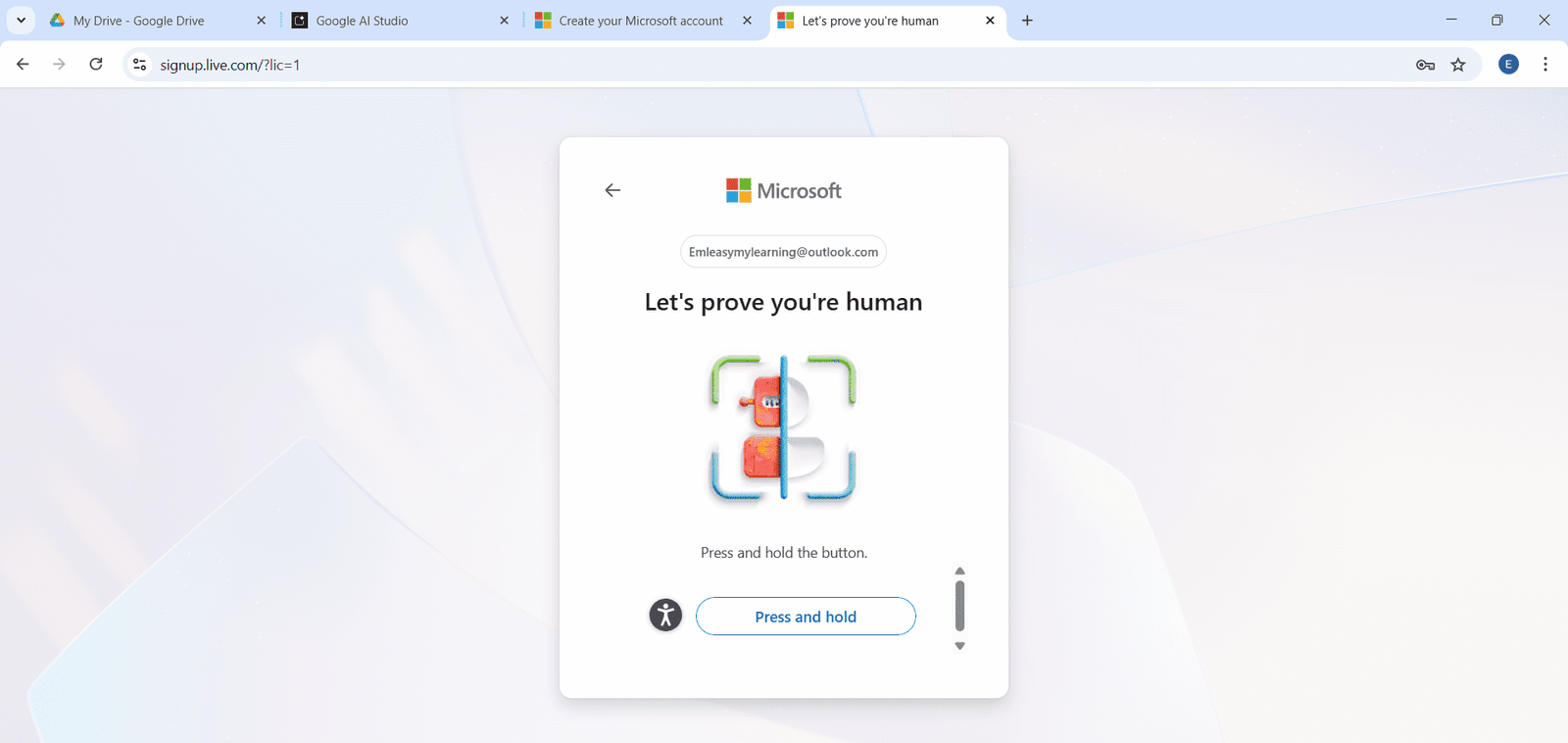
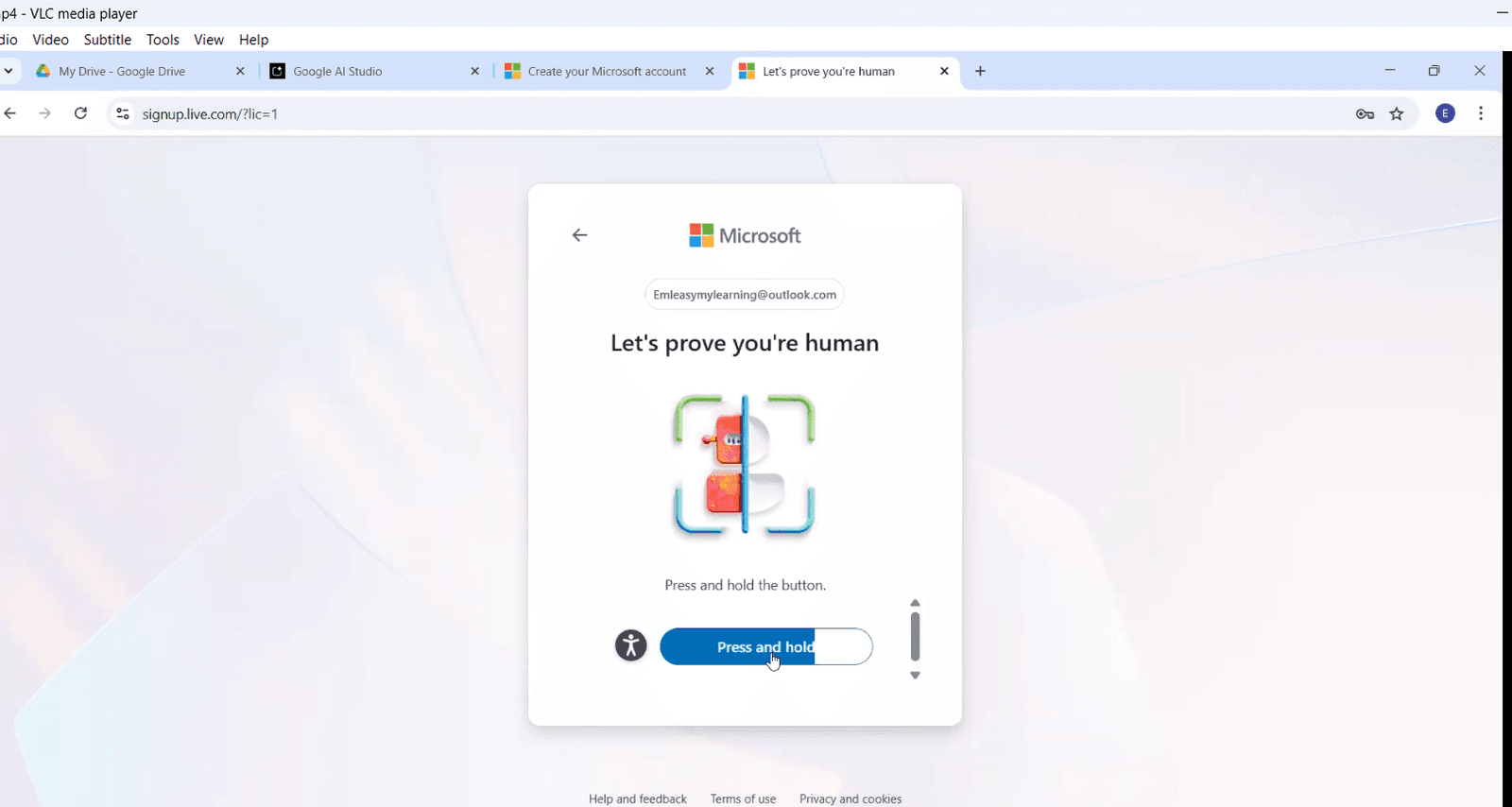
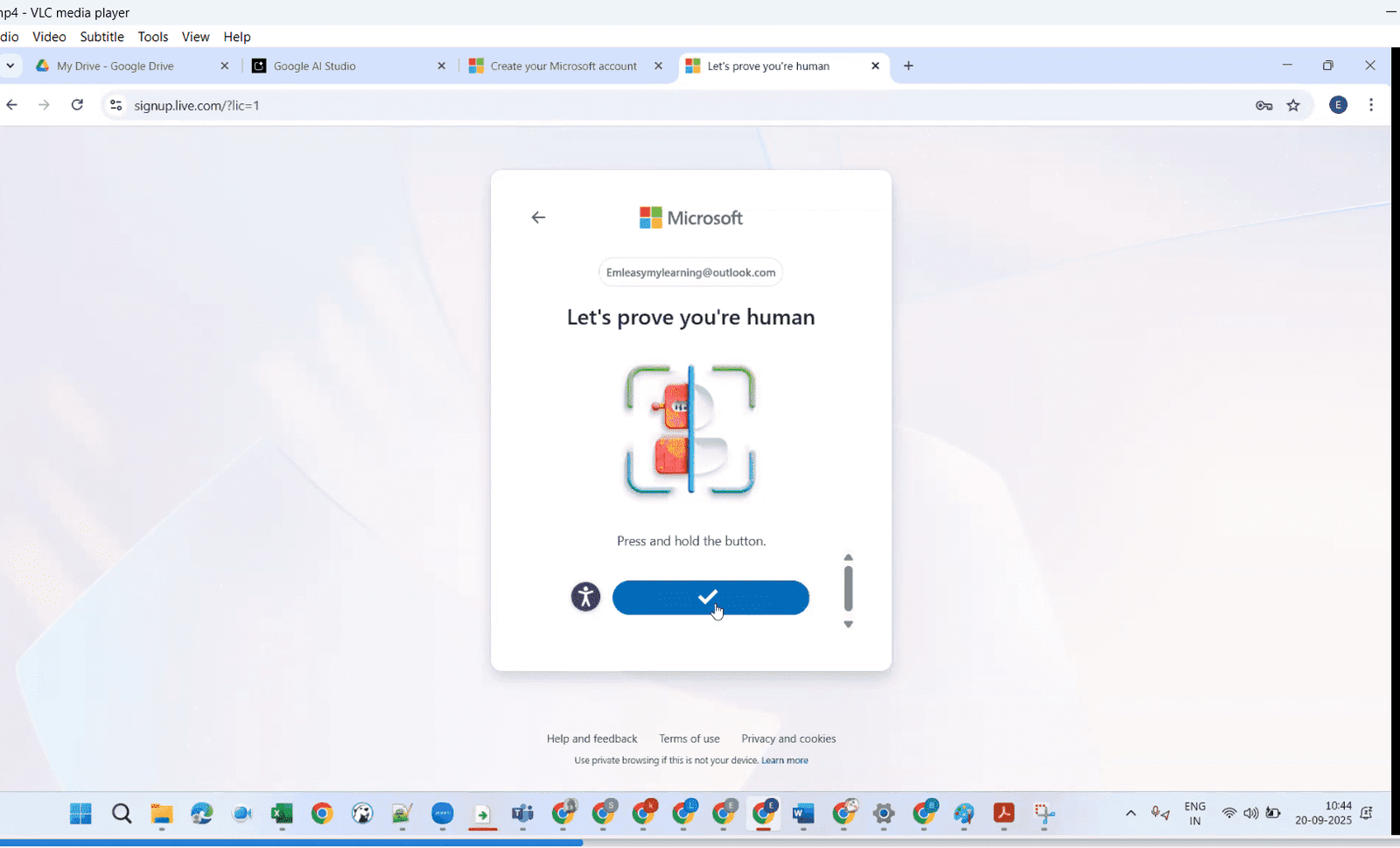
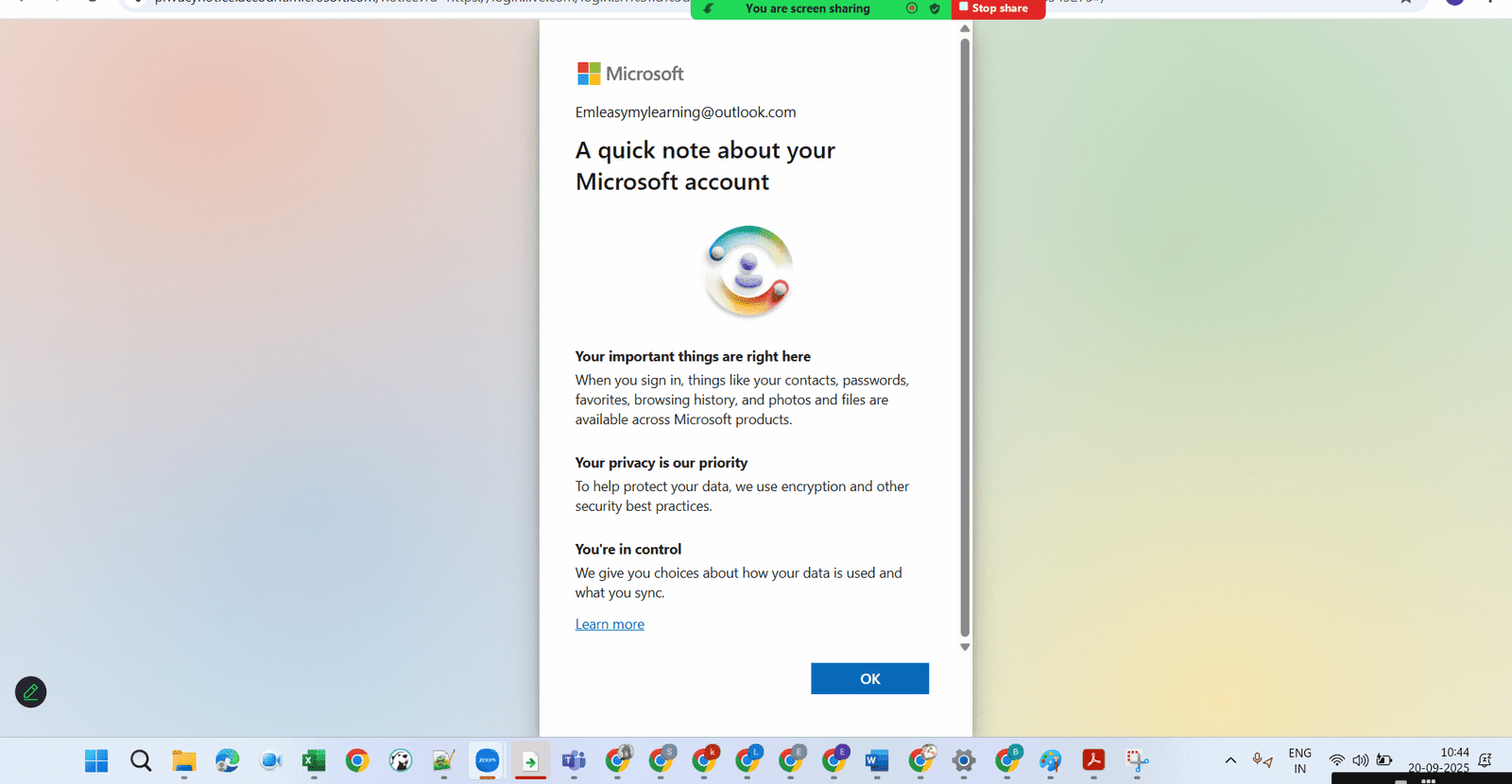
➤ Click on Ok
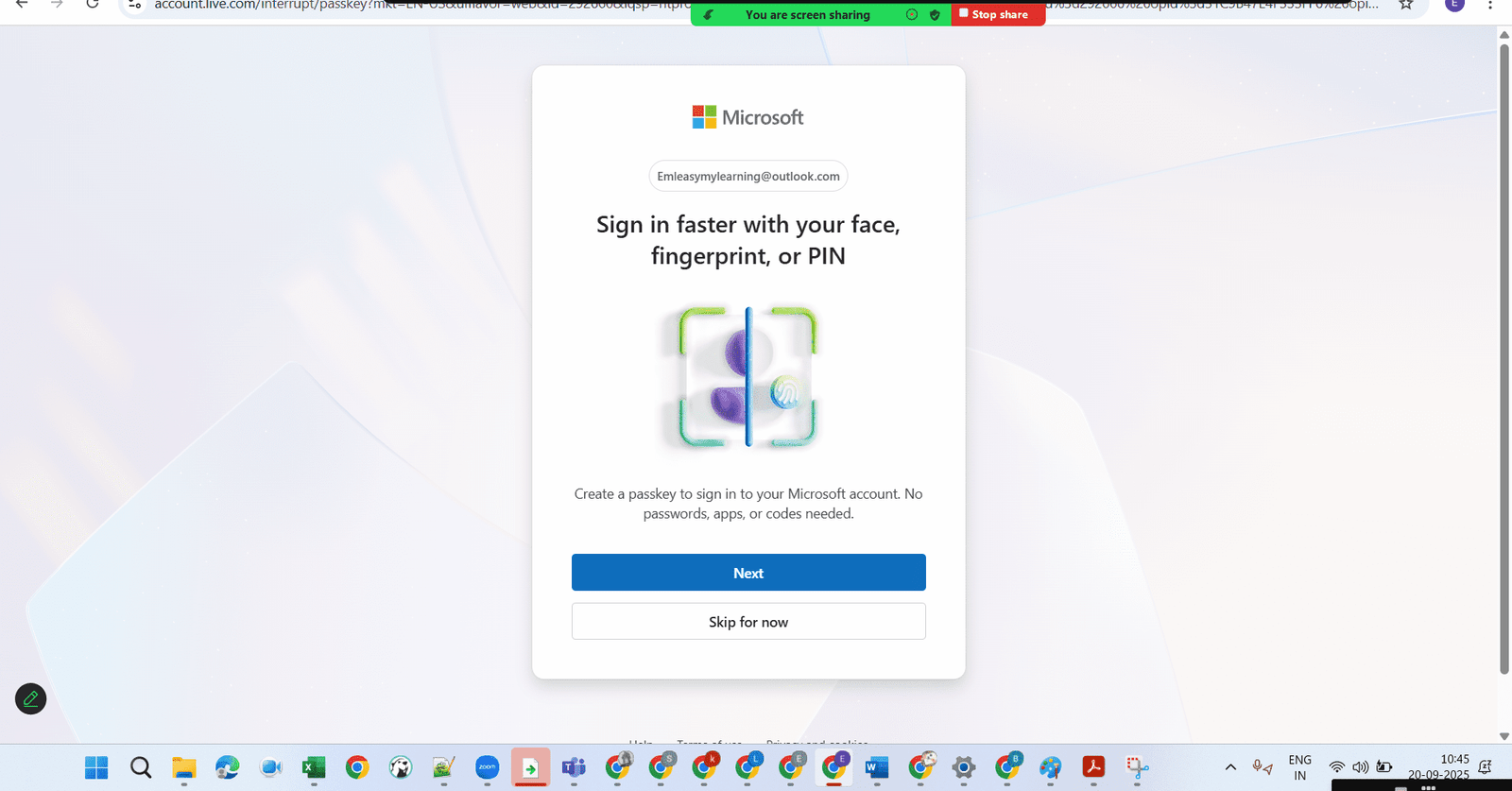
➤ Click on Skip for now.
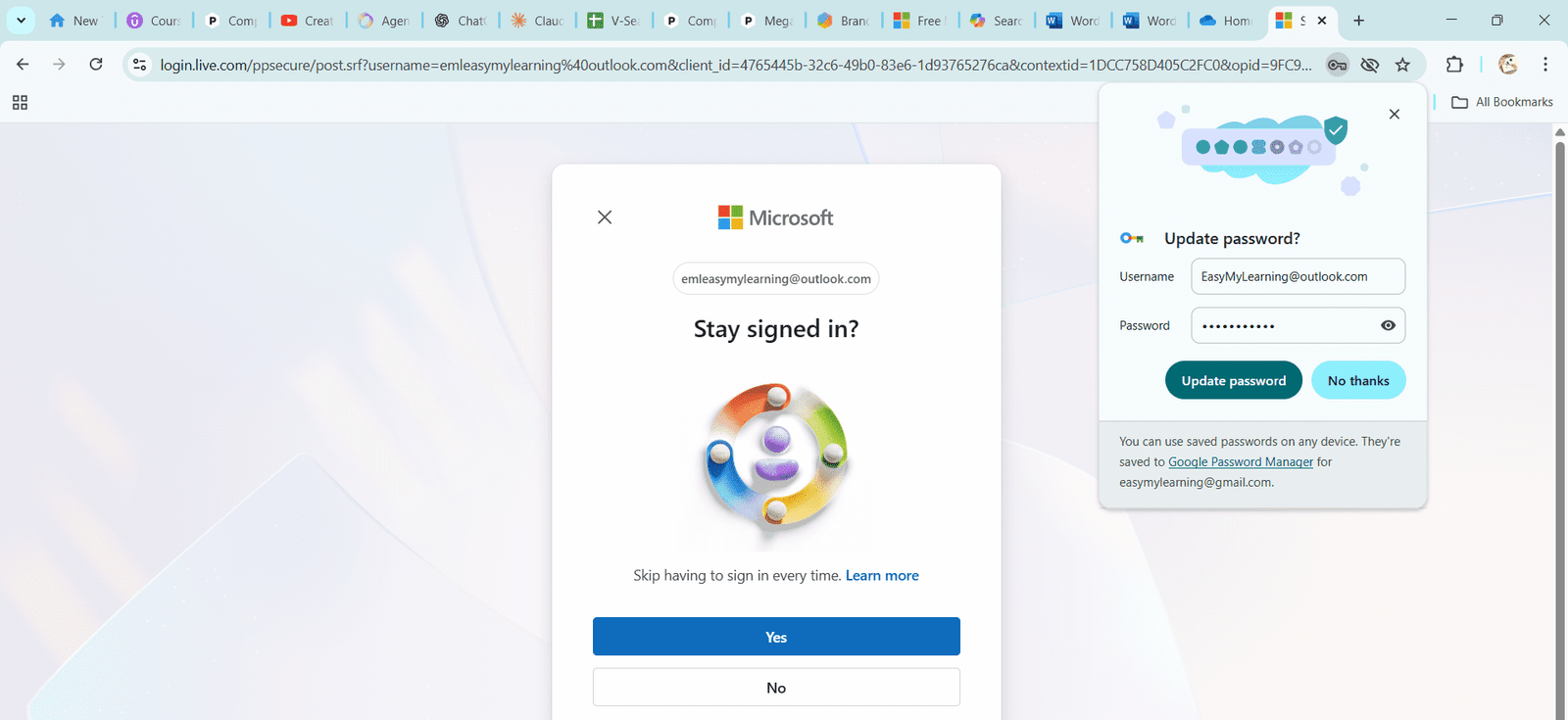
➤ Stay signed in (Yes/No) as per your wish.
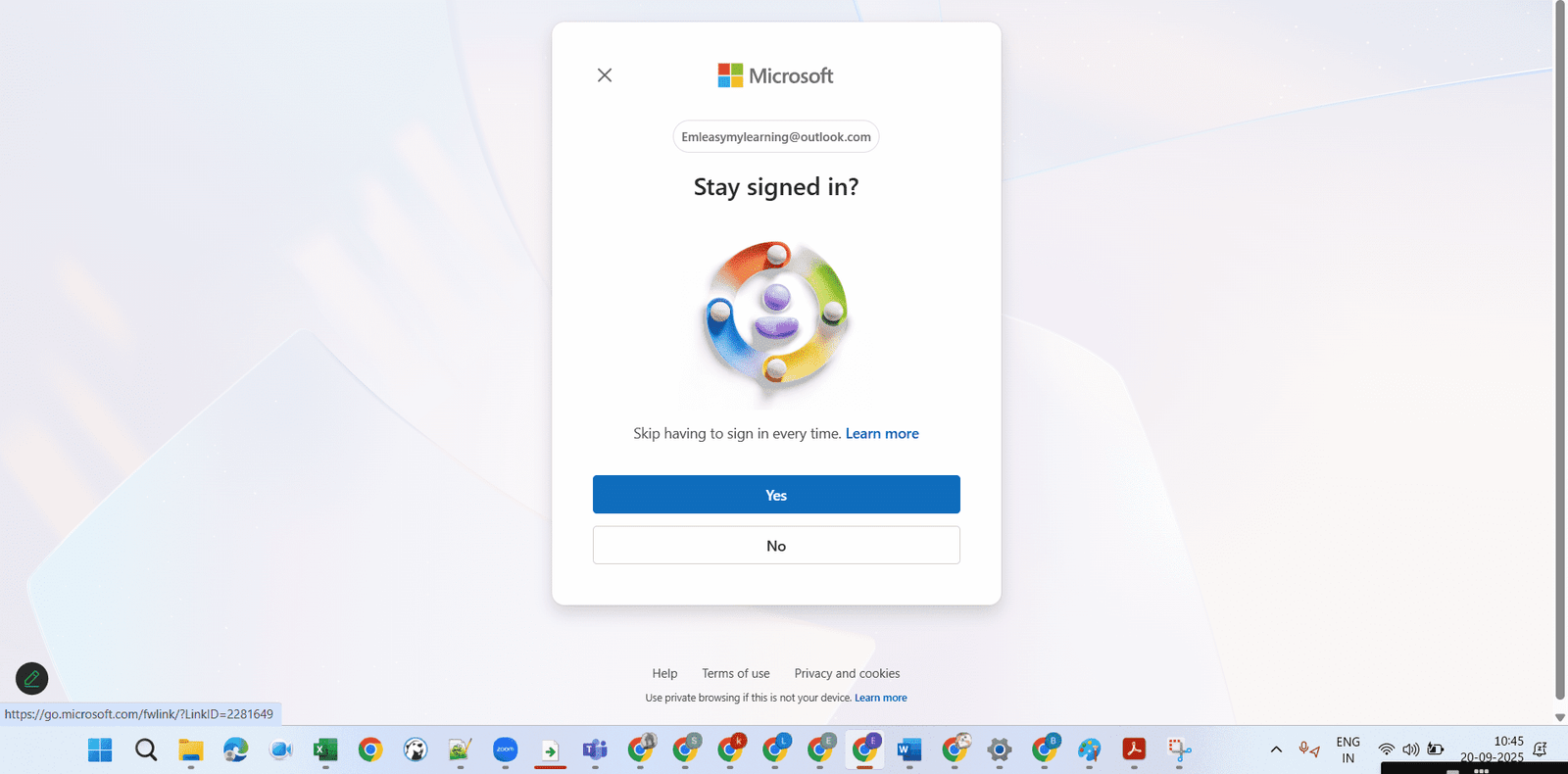
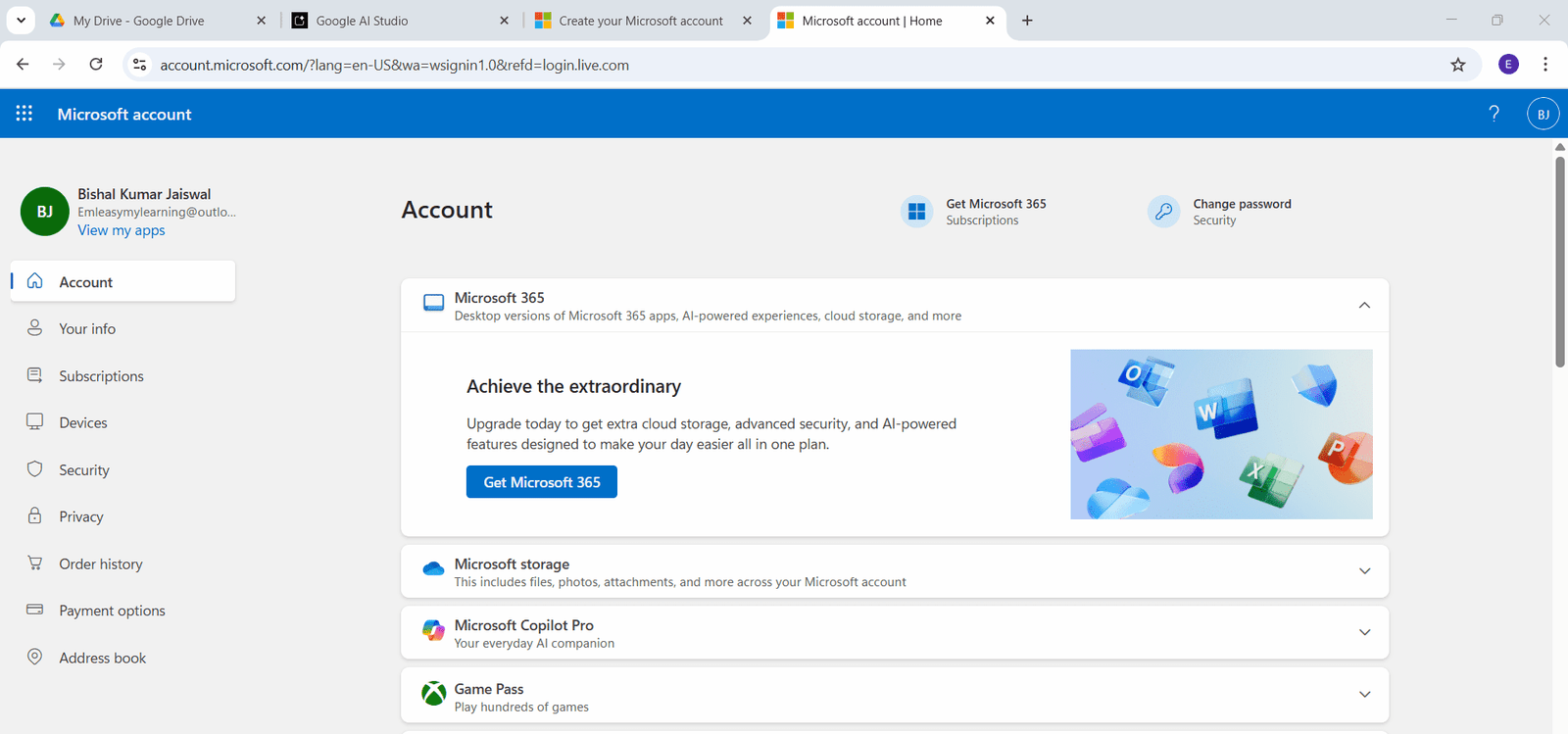
✅ Your Microsoft account is now created.
# Step 2 — Sign In to Office Online
➤ Open your browser and go to office.com or
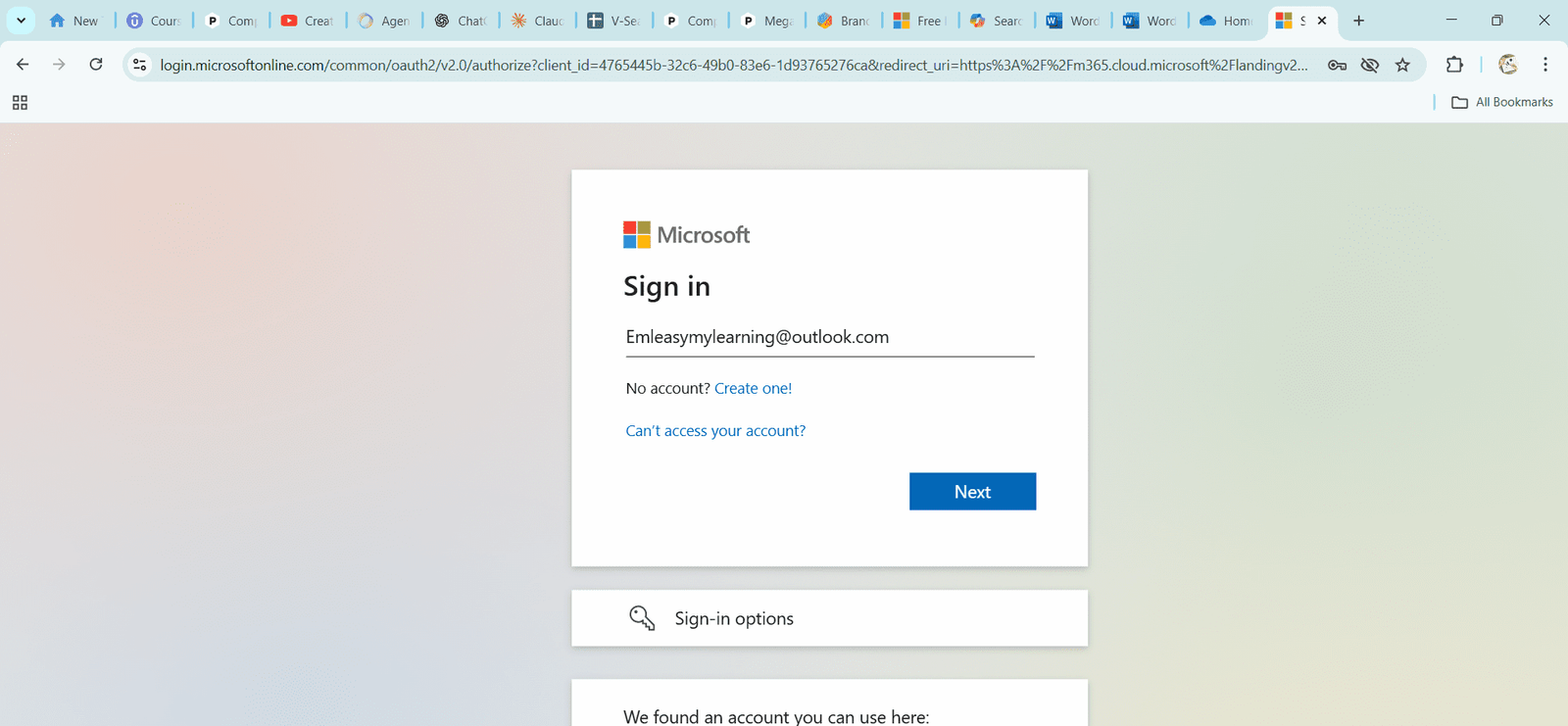
➤ Click Sign in and enter your Microsoft account details (Outlook email and password).
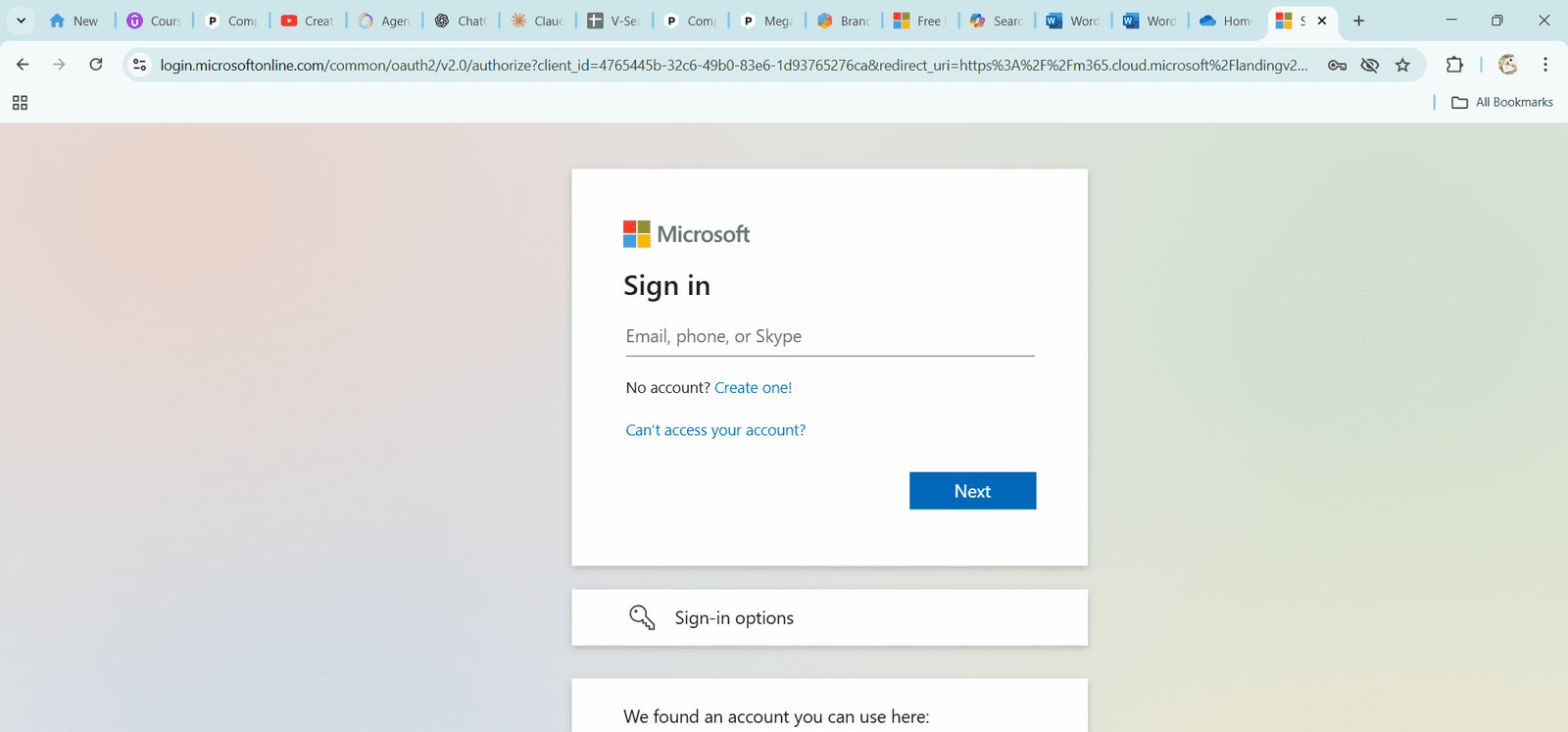
➤ Click on the Next button.
➤ To save your login for future, click Yes.
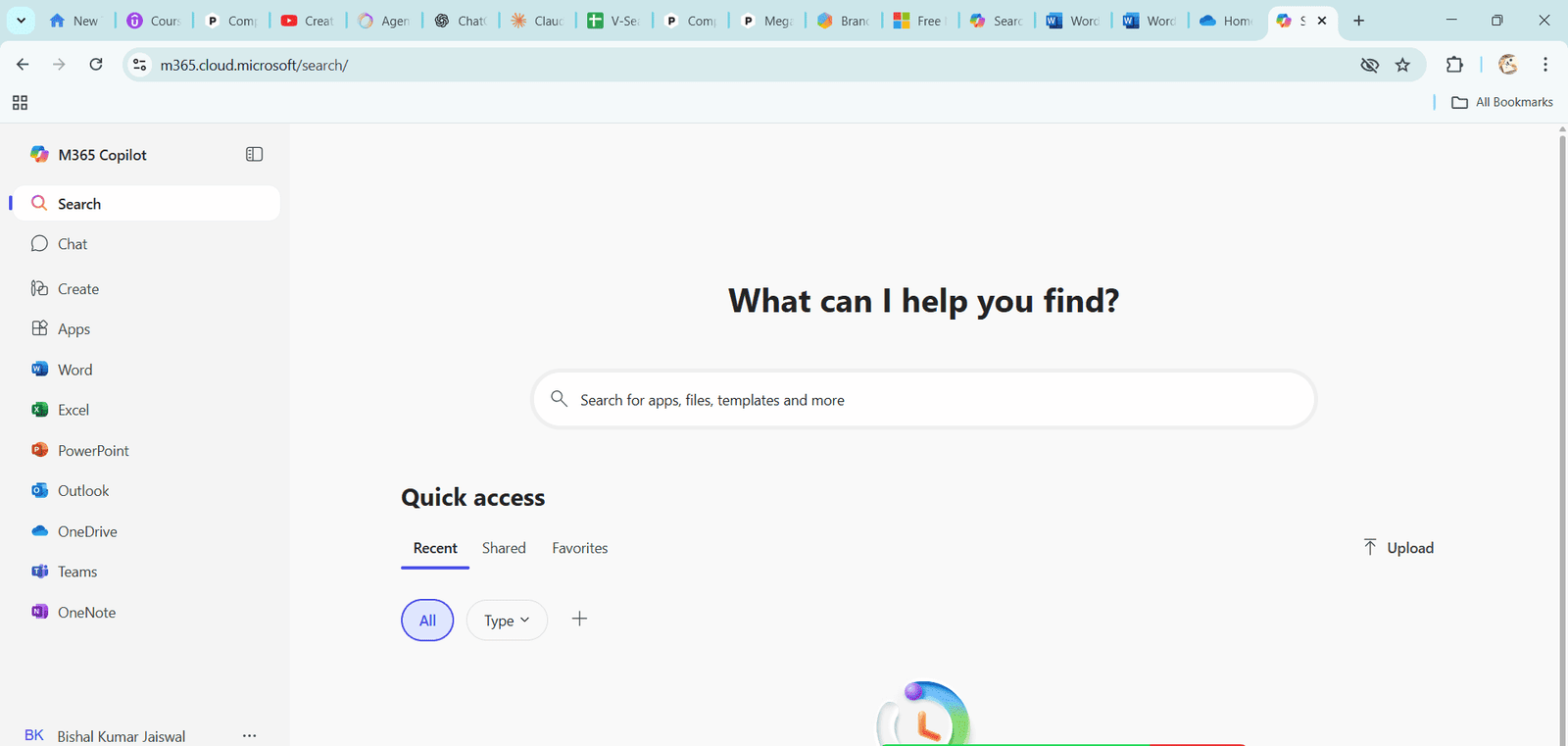
➤ You will now see the dashboard with app tiles (Word, Excel, PowerPoint, Outlook, OneDrive).
#Step 3 — Create and Save a Document
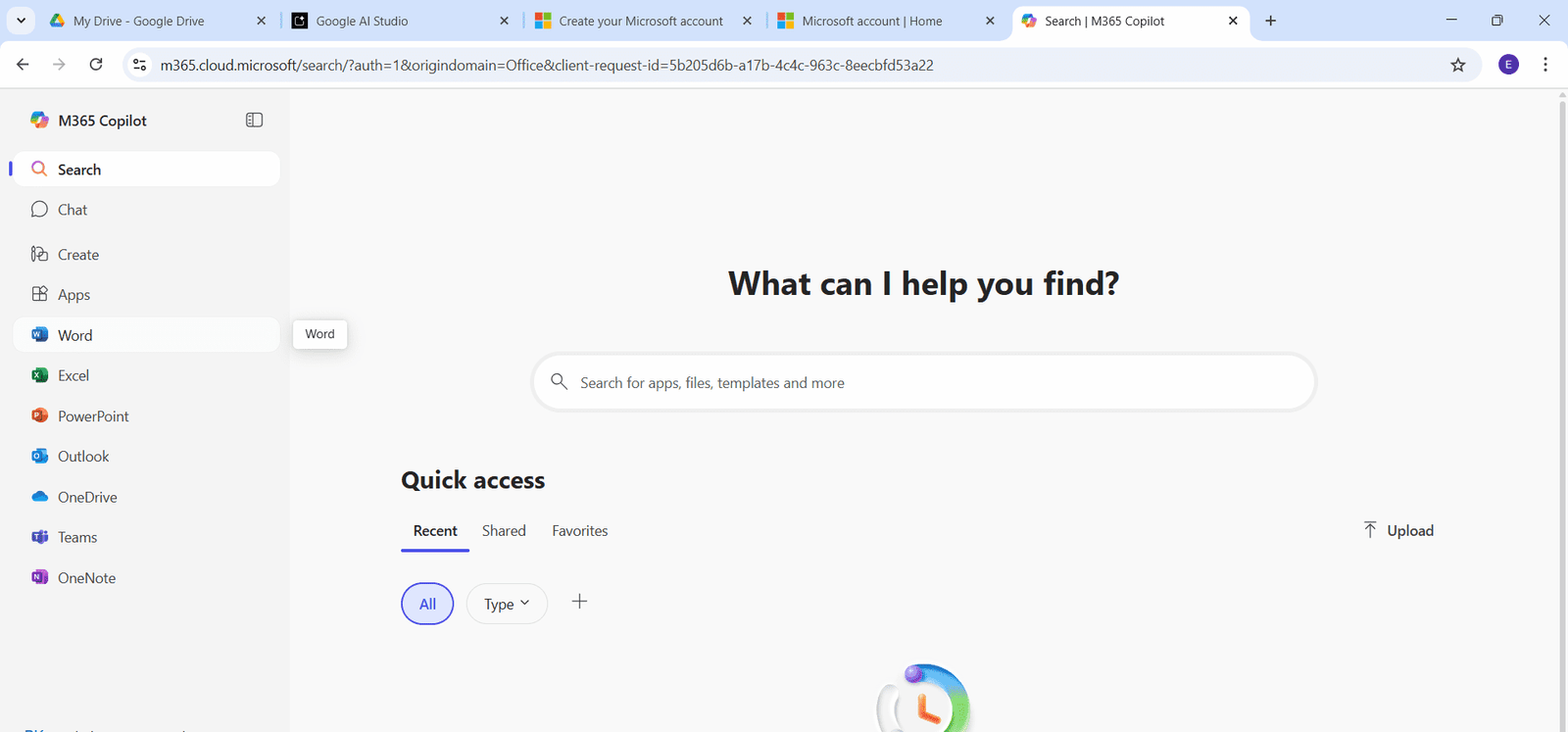
➤ From the dashboard, click Word → New blank document (or Excel/PowerPoint).
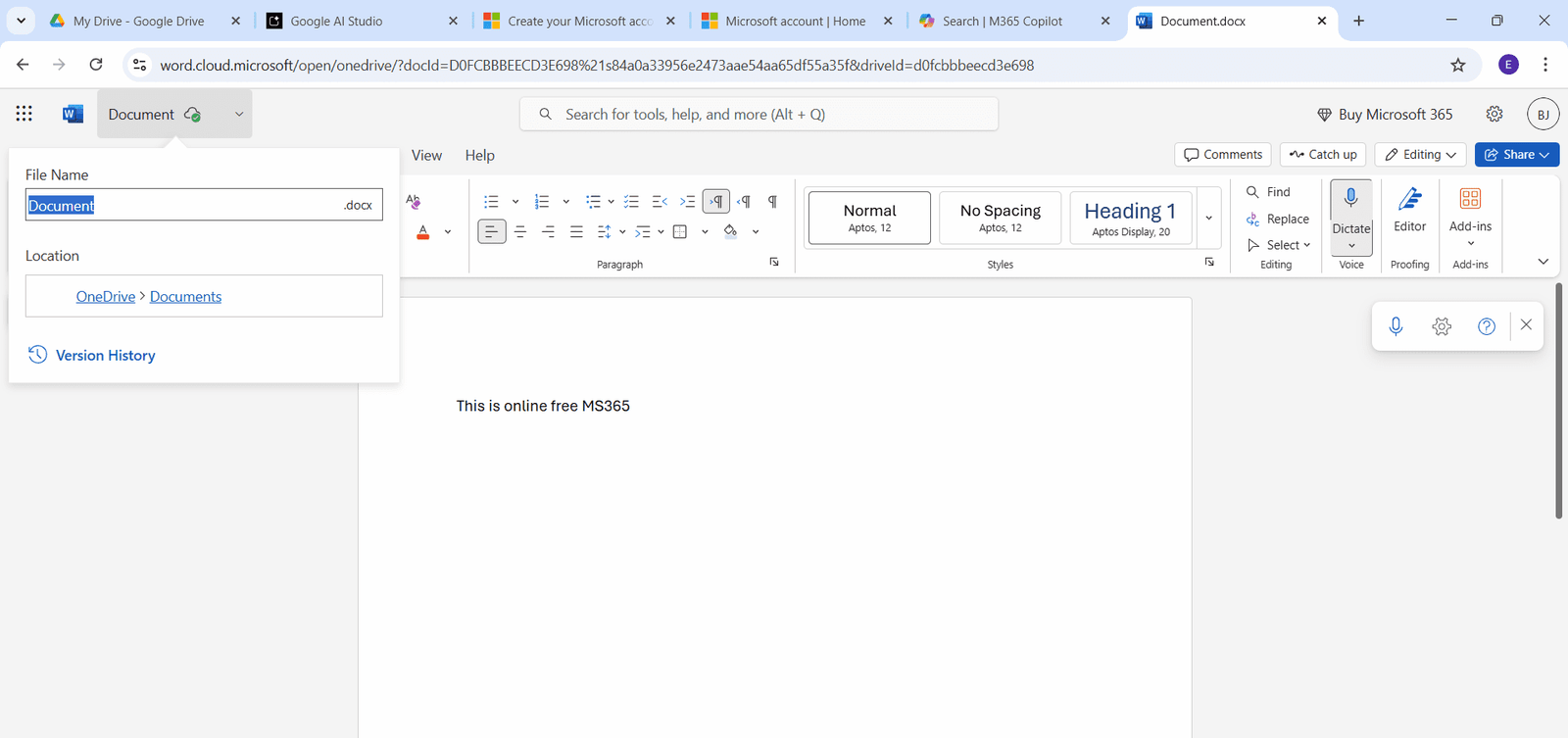
➤ Click on Create Blank Document and start typing — your work is auto-saved to OneDrive.
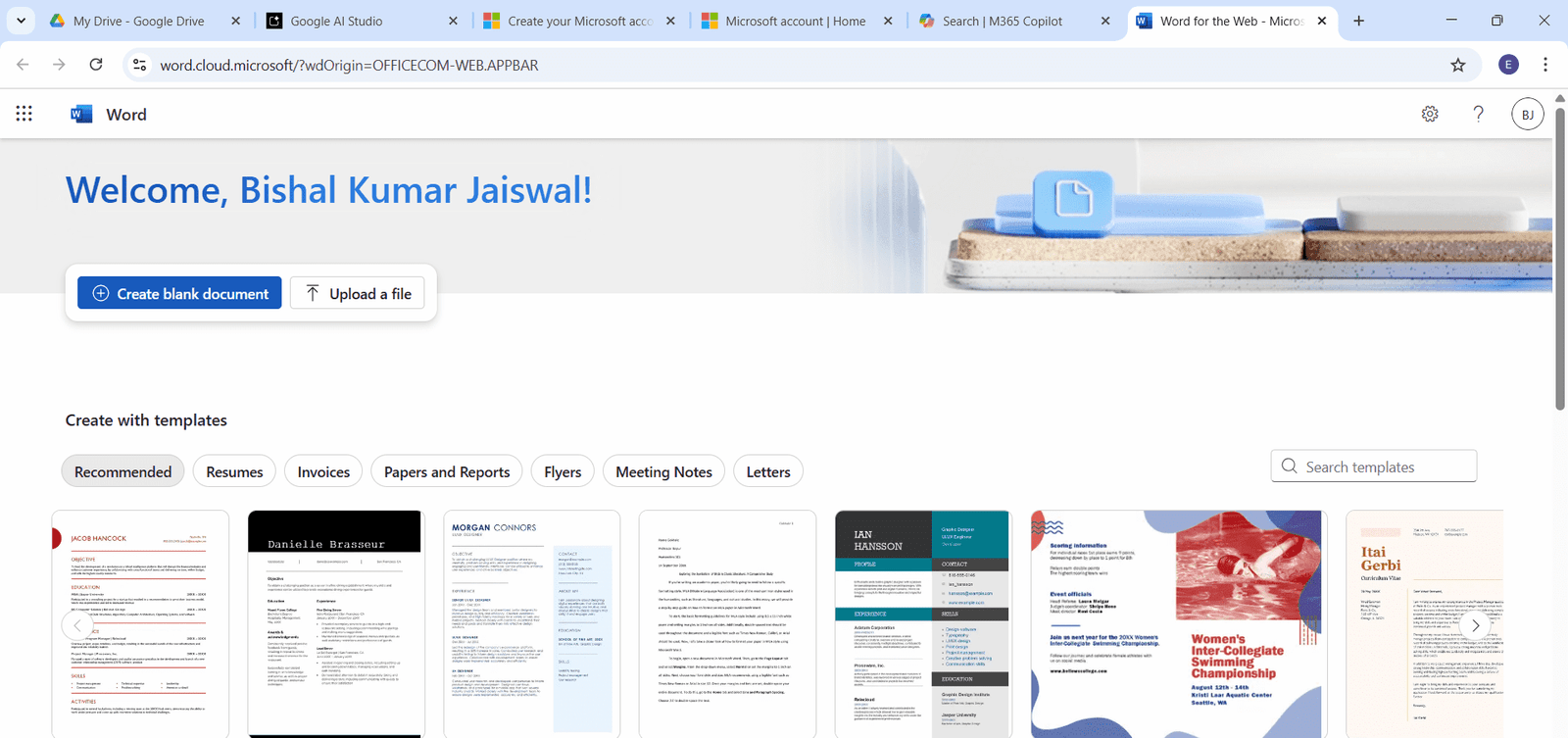
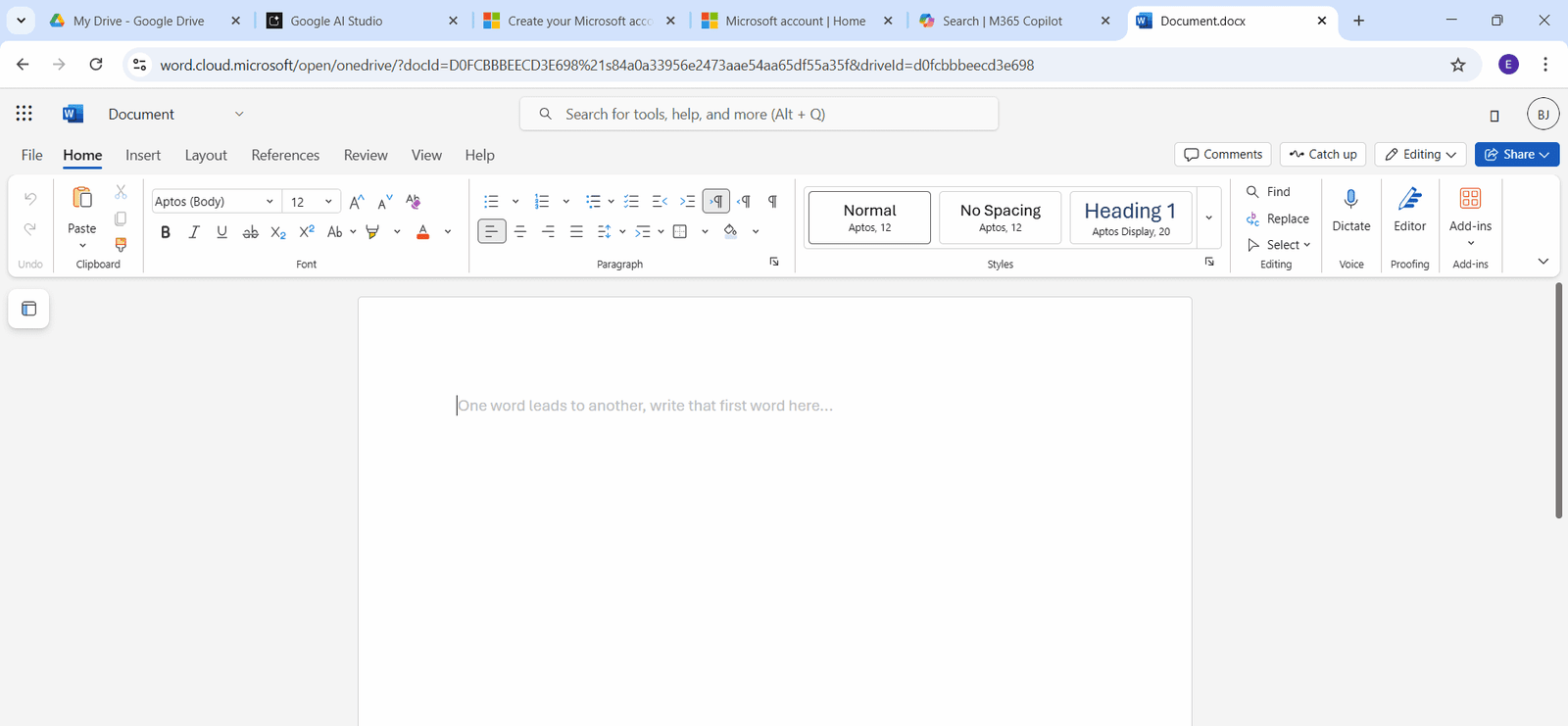
➤ Click on Create Blank Document and start typing — your work is auto-saved to OneDrive.
# Step 4 — Upload and Open Files
➤ Click on OneDrive from office.com. Main dashboard
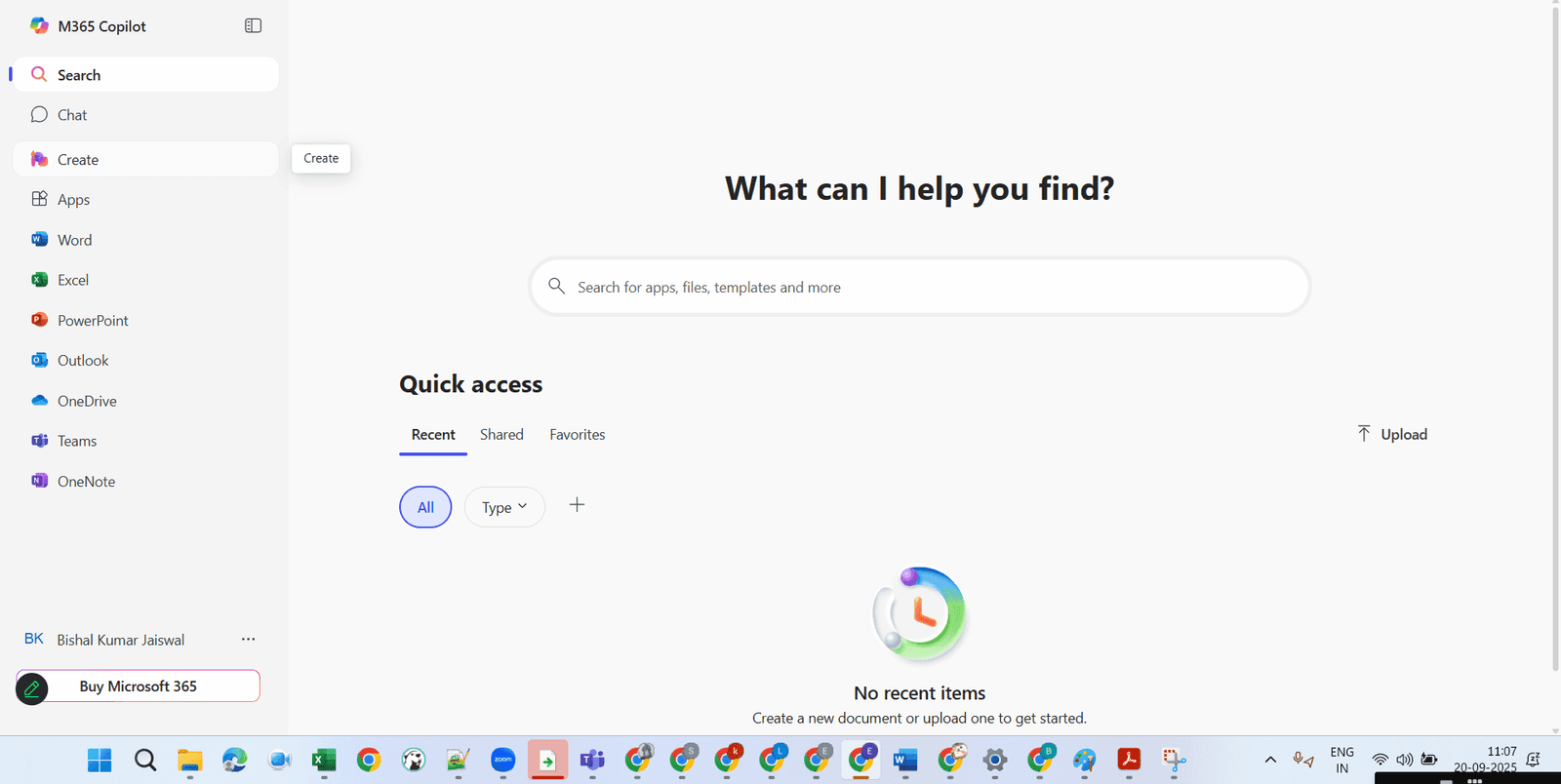
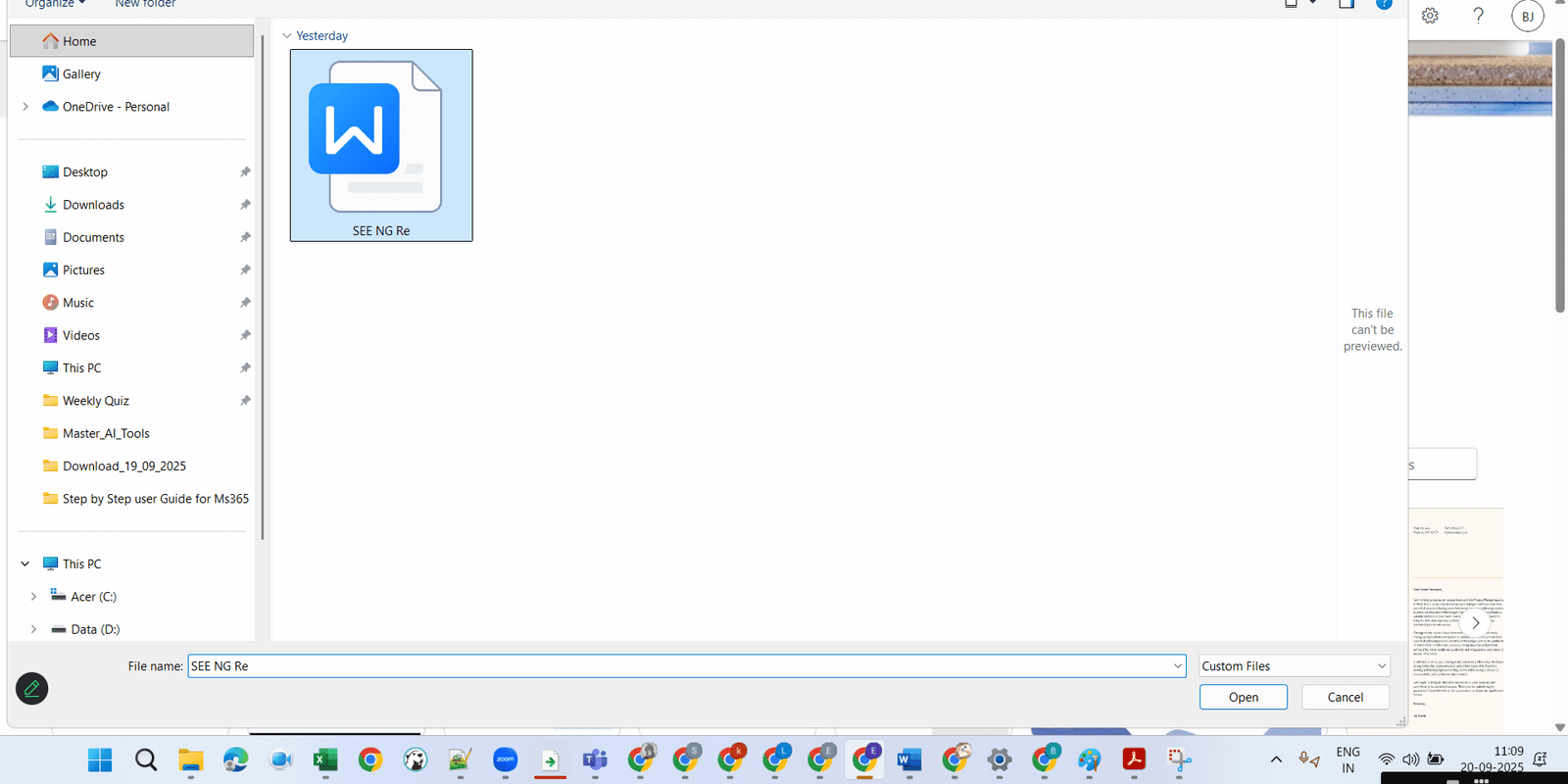
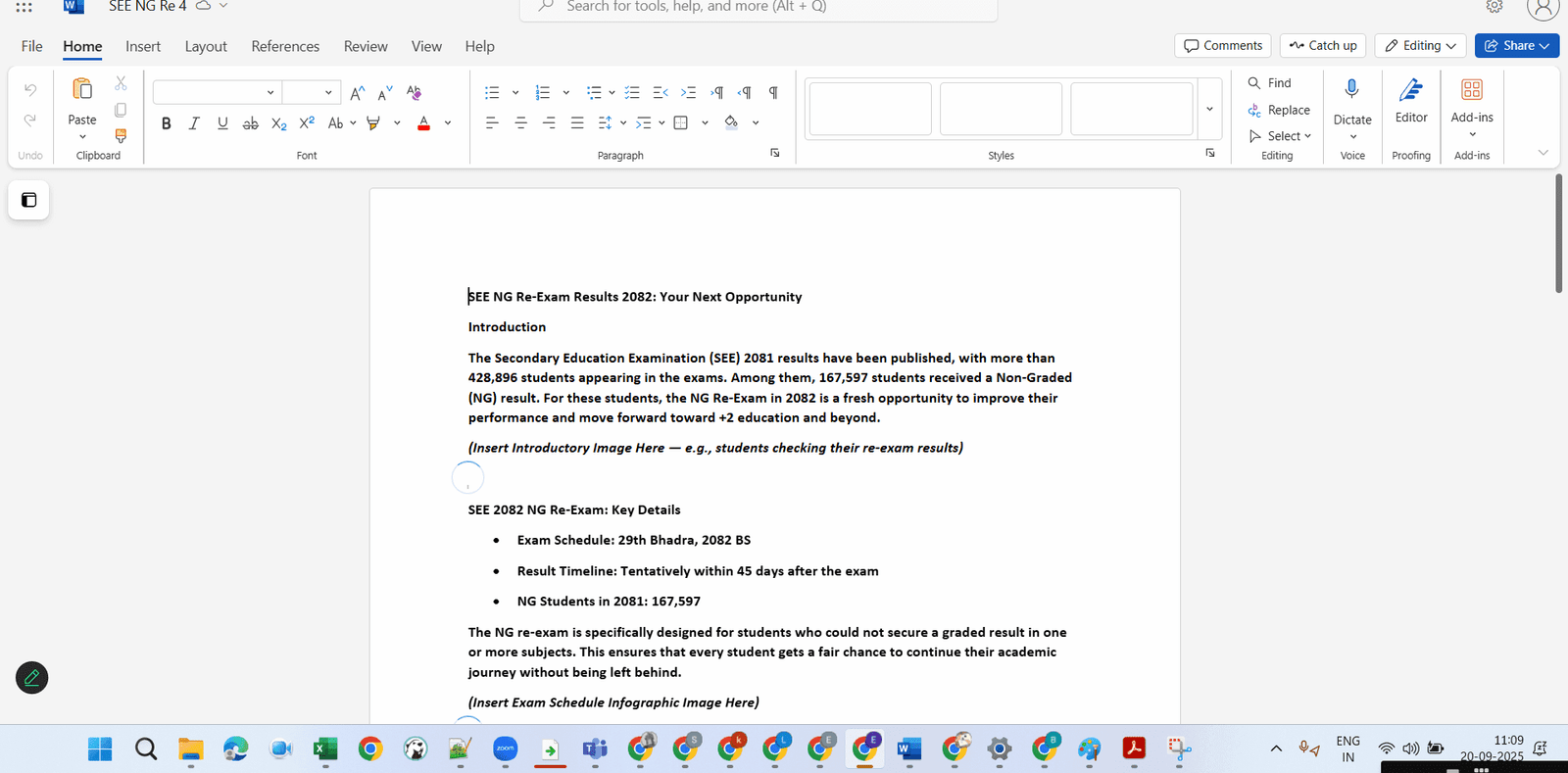
➤ Open word from left and click Upload a file→ Files/Folder to upload existing documents.
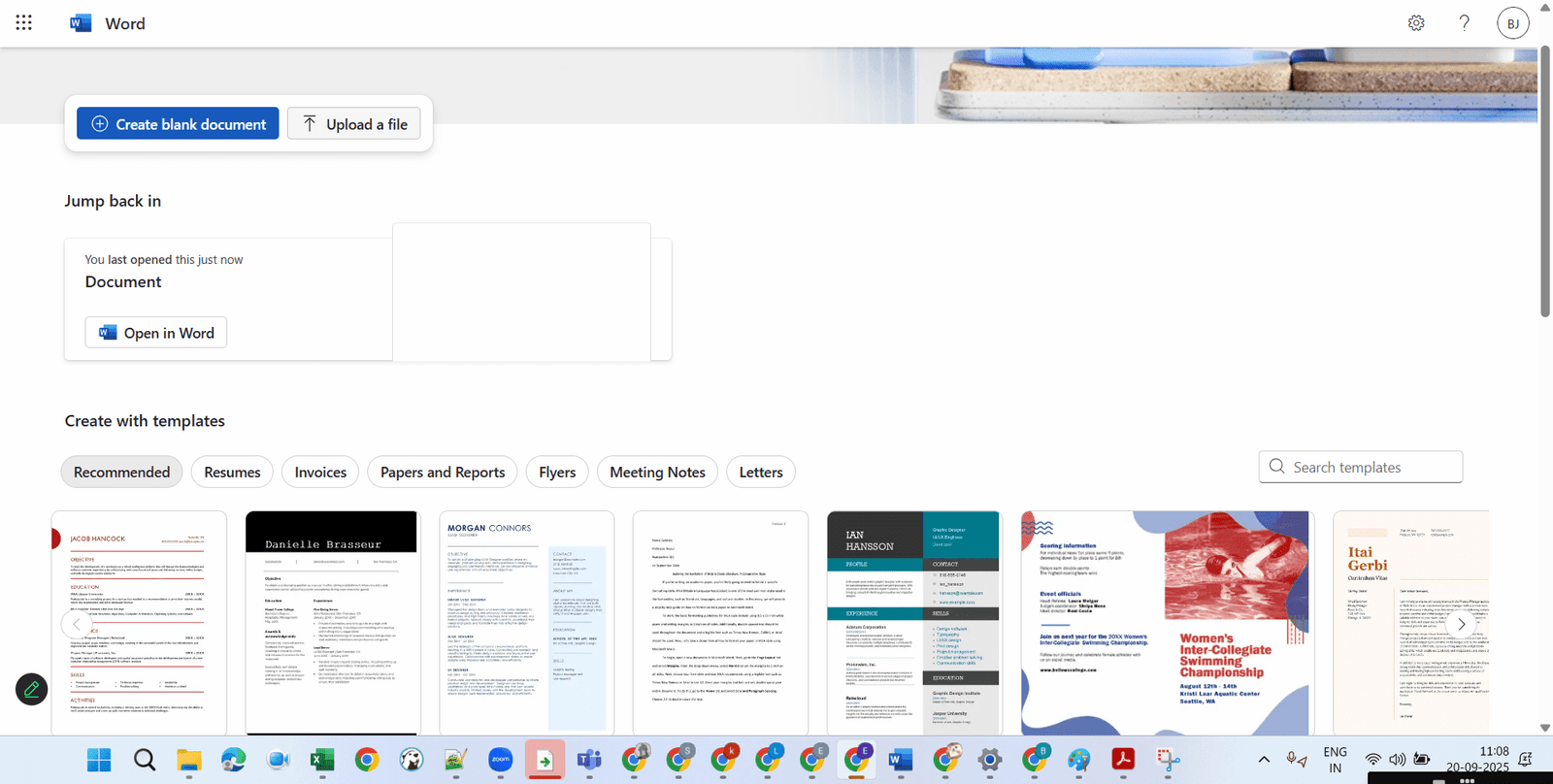
➤ Click on any file to open and edit it directly in the browser.
# Step 5 — Share and Collaborate
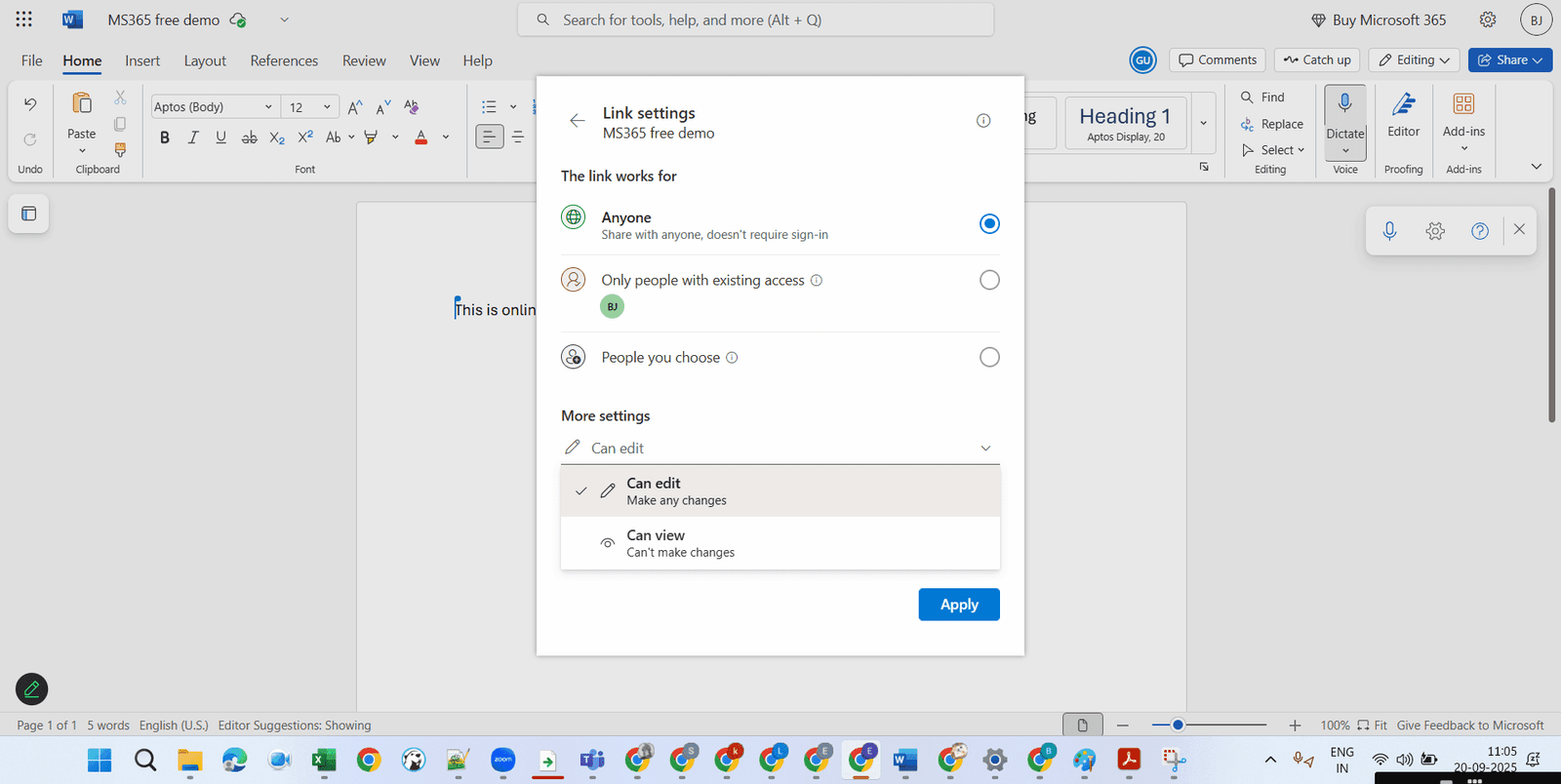
➤ Open a document and click Share (top-right).
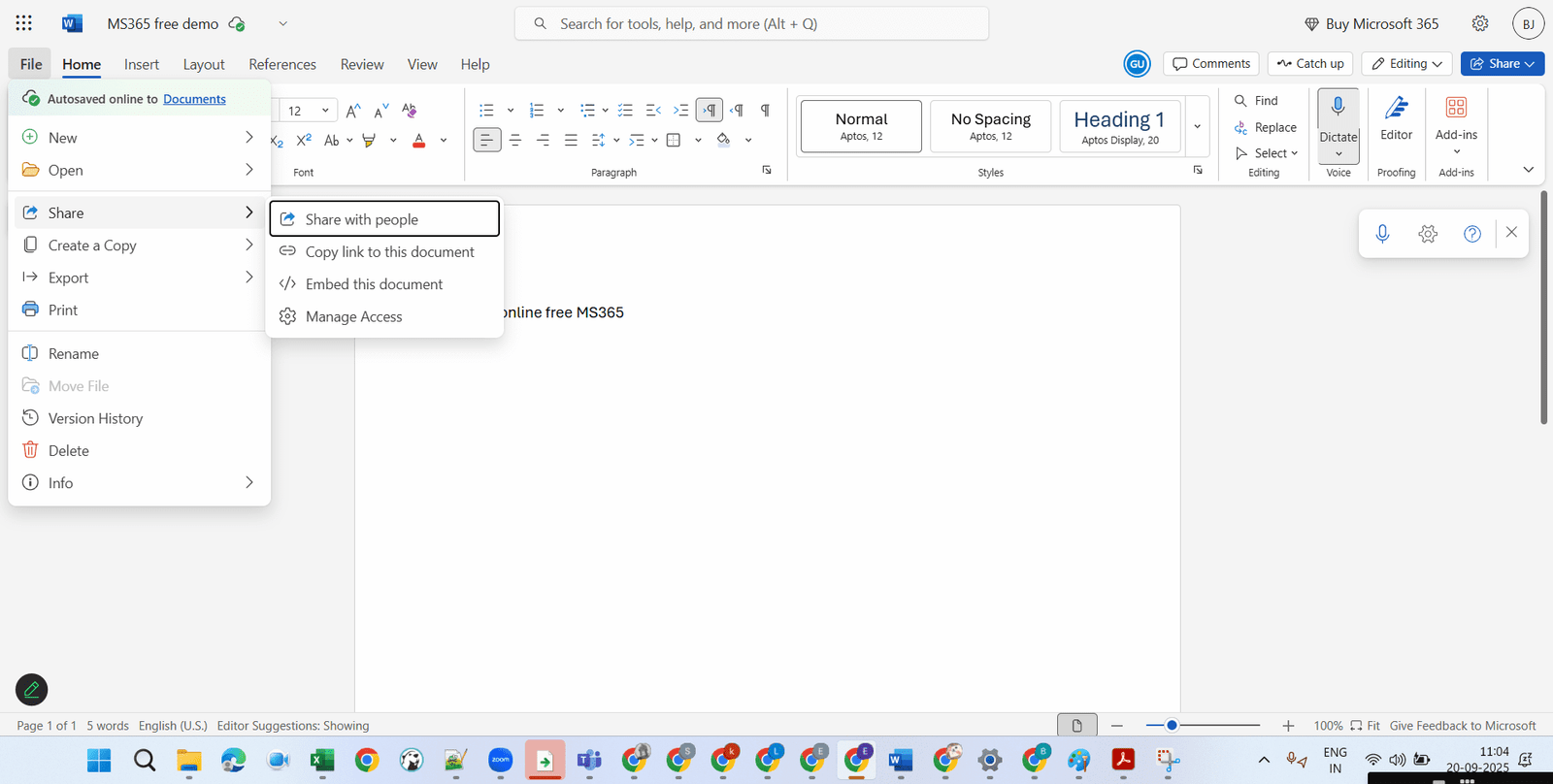
➤ Choose whether people Can edit or Can view.
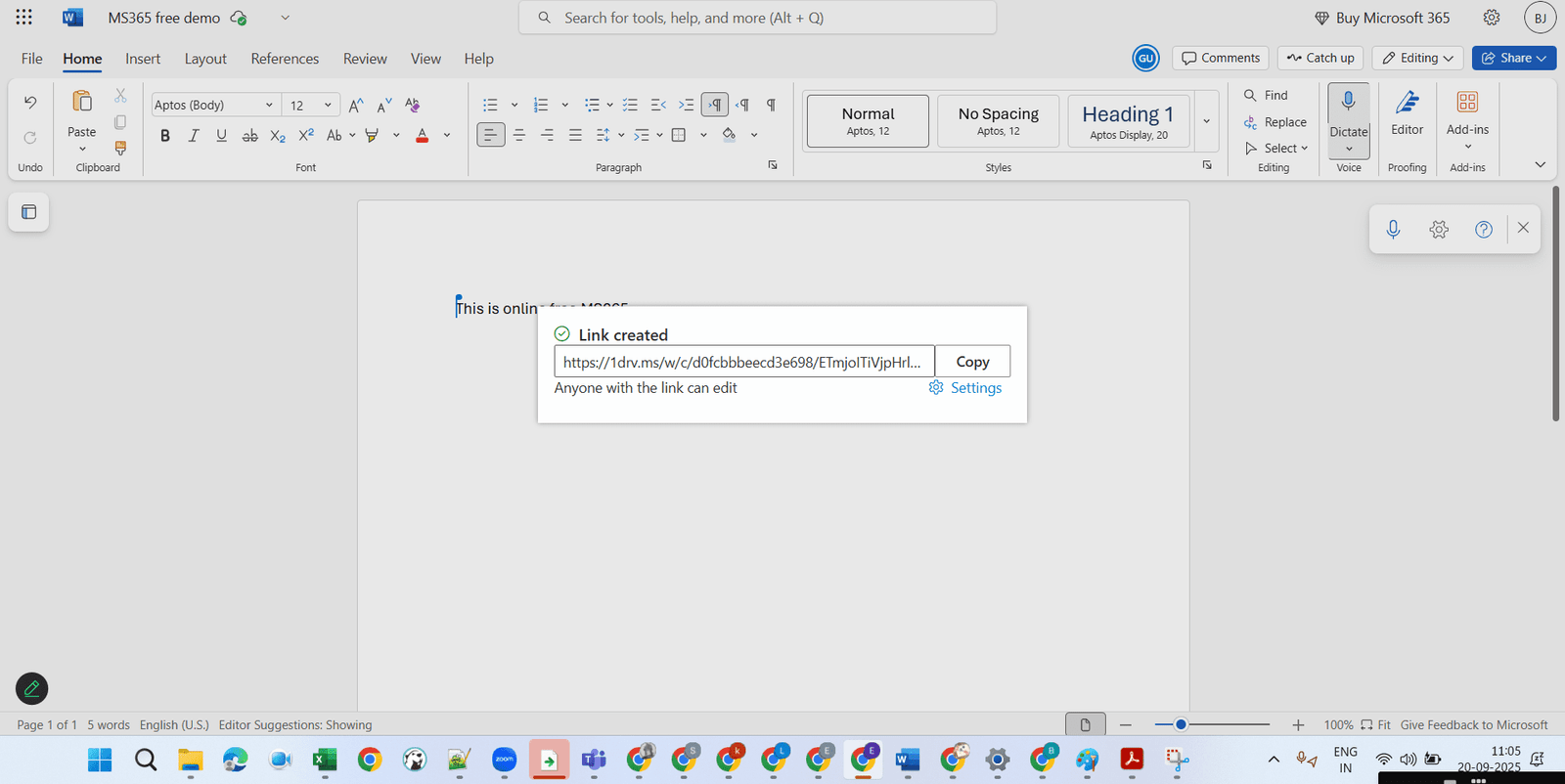
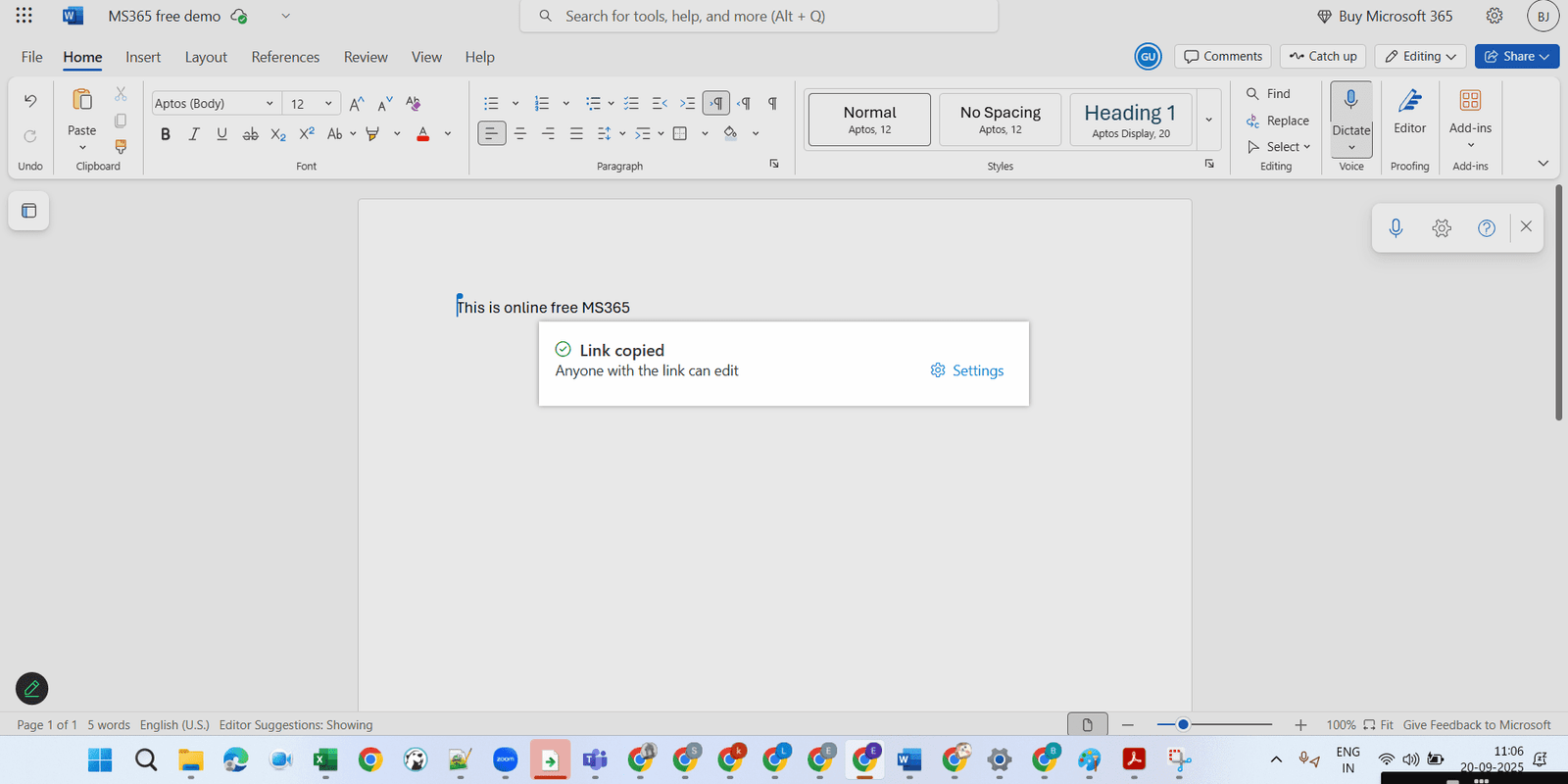
➤ Click on Apply and then copy the link to share with others.
👉 Just create your Microsoft account, log in at office.com, and start working right away!

Article By:
Gokul Bhattarai
Date:2082/06/07